Gravity Forms
Gravity Forms is one of the most popular WordPress form plugins. It renders standard <form> and <input> elements in the DOM, which means AttributionHub picks it up automatically — no extra plugin or custom code needed.
The setup is straightforward: add hidden fields to your form with the right names, and AttributionHub takes care of filling them with attribution data on every submission.
Prerequisites
Before you start, make sure you have:
- The AttributionHub tracking script running on your site (see Installation)
- Gravity Forms installed and activated in WordPress
- Access to the WordPress admin to edit forms
Step 1: Open Your Form
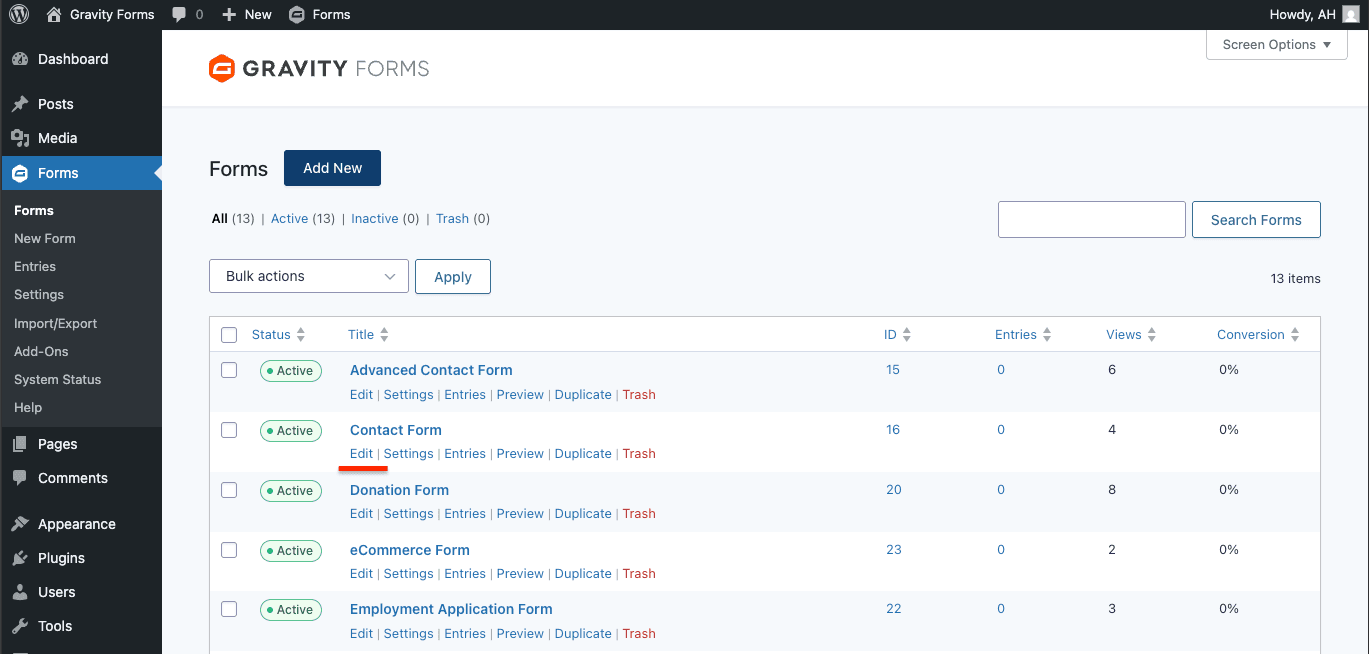
- In your WordPress admin, head to Forms > Forms
- Click the form you want to set up, or go ahead and create a new one
Step 2: Add Hidden Fields
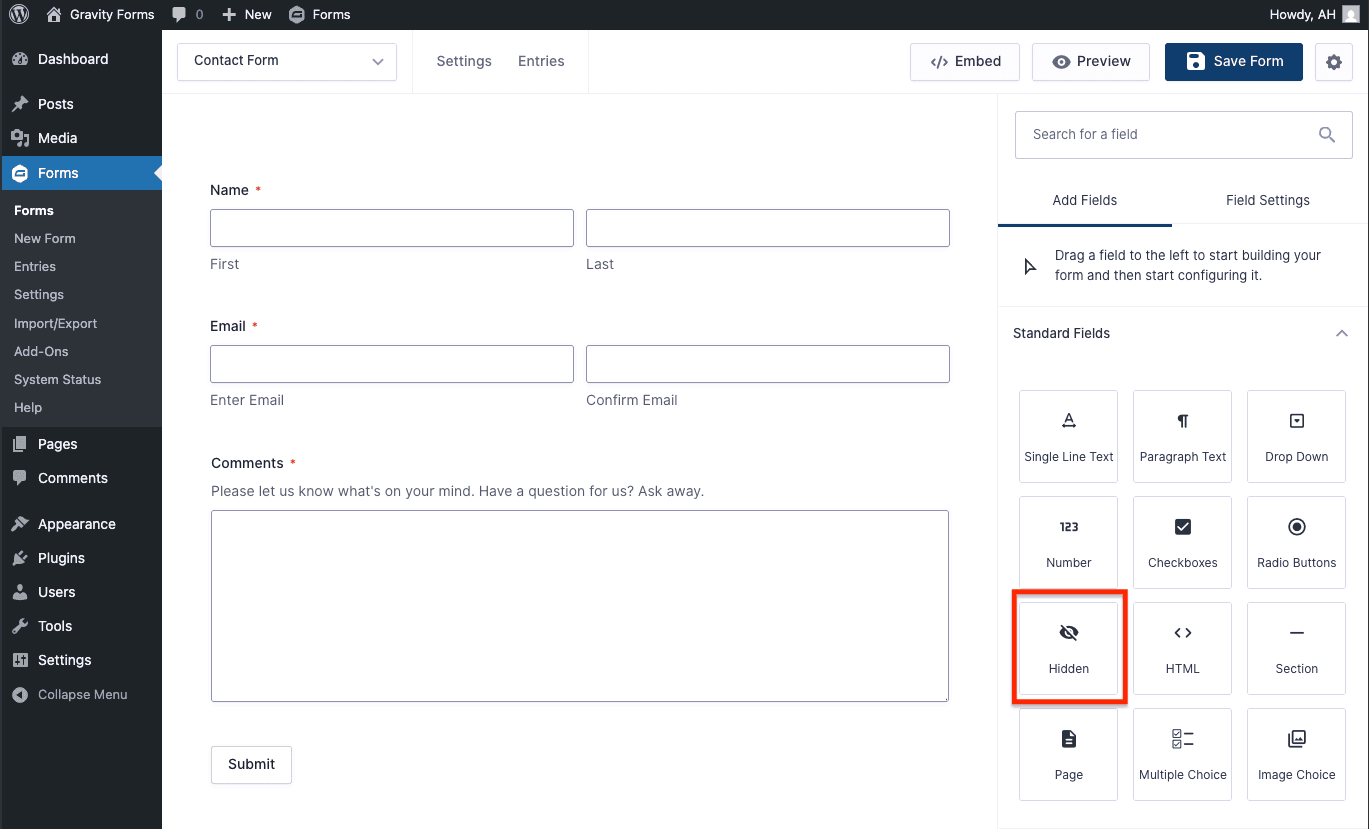
- In the form editor, find the Add Fields panel on the right
- Click Hidden to drop a new hidden field into your form
- Do this for each attribution field you want to capture
We recommend adding at least the core fields listed further down this page. Pick whichever ones matter for your reporting — you don’t have to add them all.
Step 3: Configure Each Hidden Field
For each hidden field:
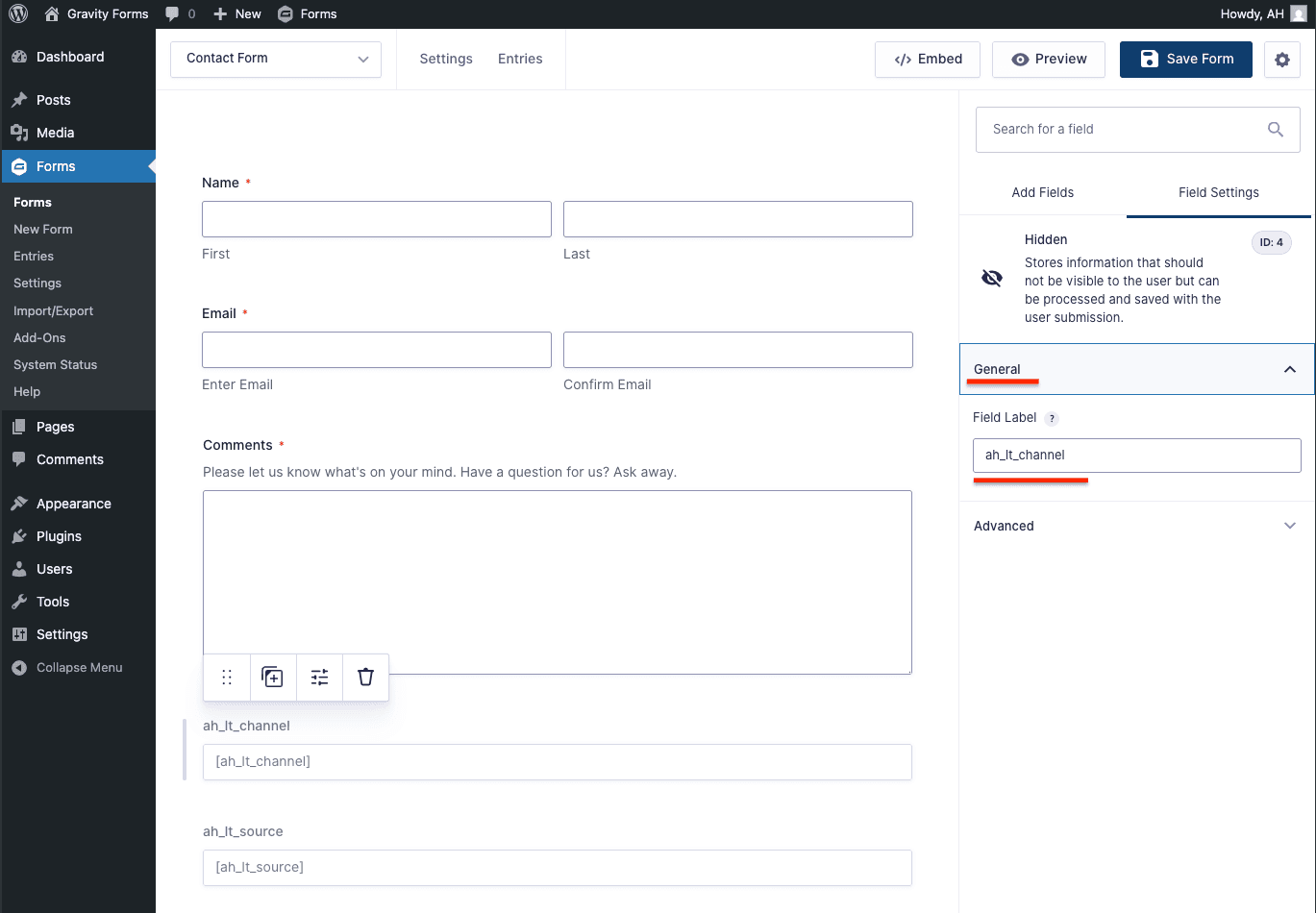
- Click it in the editor to open its settings
- Under the General tab in Field Settings, give it a label (e.g., “Attribution Channel”). This label only shows up in the Gravity Forms admin — it won’t affect how AttributionHub finds the field.
- Switch to the Advanced tab in Field Settings
- In the Default Value field, type the AttributionHub field name wrapped in square brackets — for example,
[ah_lt_channel]. The brackets are important! Use the exact name from the Field Reference.
This Default Value is how AttributionHub knows which piece of data goes where.
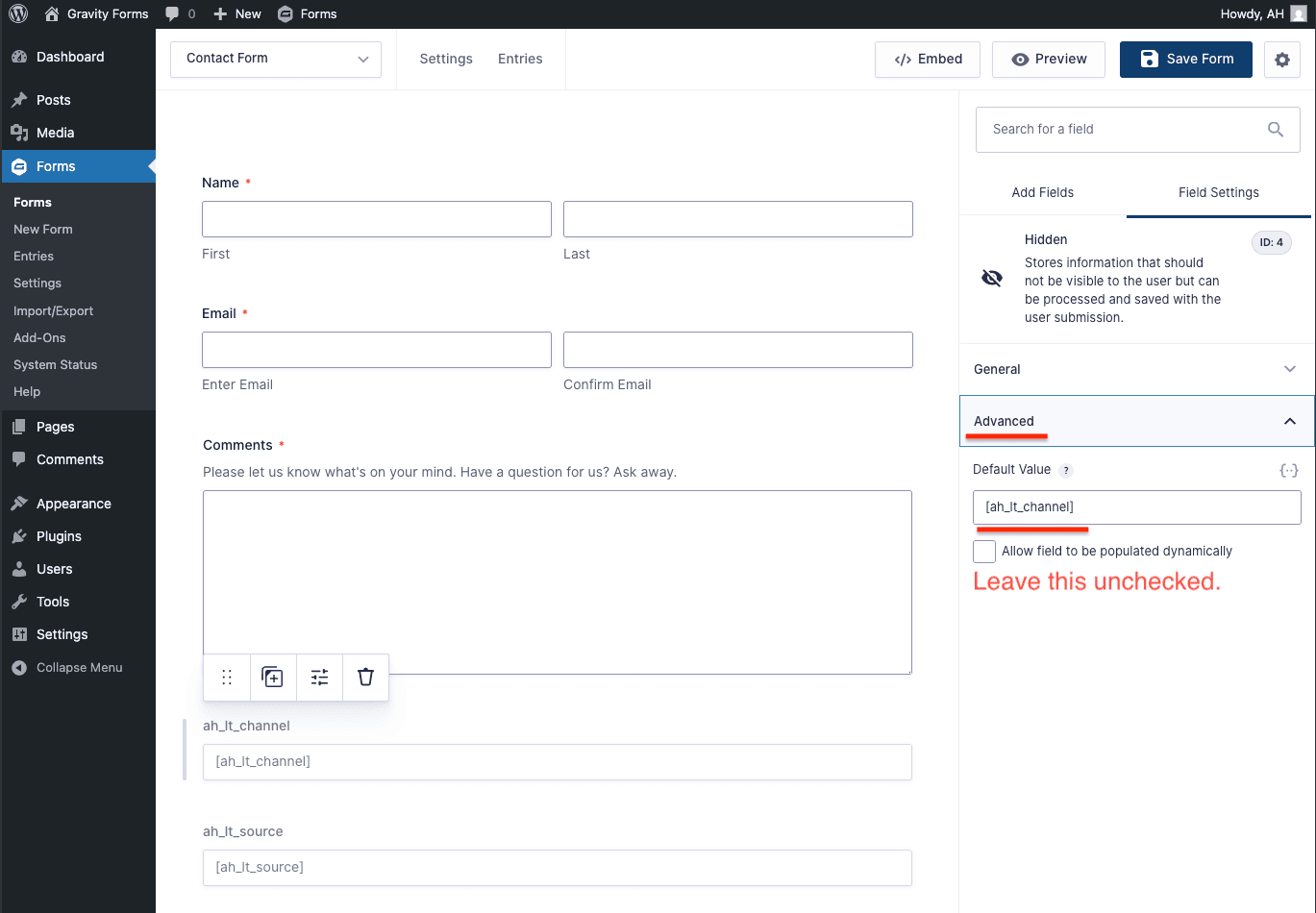
Make sure the name inside the brackets exactly matches one of the supported field names below.
Important: Leave the “Allow field to be populated dynamically” checkbox unchecked. AttributionHub writes values directly into hidden fields in the DOM, and enabling dynamic population can interfere with that — fields may end up empty or overwritten.
Step 4: Save and Test
- Hit the Save Form button in the top right corner of the editor
- Open a page on your site that has the form
- Submit a test entry and check that attribution values show up in the entry details inside WordPress admin
For a full walkthrough, see Verify It Works.
Recommended Hidden Fields
Here are the most commonly used fields for Gravity Forms. For the complete list, see Field Reference.
Core Attribution Fields (Latest Touch)
These capture the visitor’s most recent traffic source:
| Parameter Name | Description | Example Values |
|---|---|---|
ah_lt_channel | Channel group (latest touch) | Paid Search, Organic Social, Direct |
ah_lt_source | Traffic source name | Google, Facebook, Direct |
ah_lt_medium | Traffic medium | paid, organic, social, email |
ah_lt_campaign | Campaign name | spring_sale, Organic Search |
ah_lt_content | Content classification | Paid Search Ad, Social Post |
ah_lt_term | Search keyword (if available) | running shoes |
ah_lt_landing_url | Landing page URL (no query string) | https://yoursite.com/pricing |
Core Attribution Fields (First Touch)
First-touch fields record the very first source that brought a visitor to your site. Once set, they never change:
| Parameter Name | Description | Example Values |
|---|---|---|
ah_ft_channel | Channel group (first touch) | Paid Search, Organic Social |
ah_ft_source | Traffic source name | Google, Facebook |
ah_ft_medium | Traffic medium | paid, organic, social |
ah_ft_campaign | Campaign name | launch_campaign |
ah_ft_landing_url | Original landing page URL | https://yoursite.com/blog/post |
Global Fields
| Parameter Name | Description | Example Values |
|---|---|---|
ah_visitor_id | Unique visitor ID, persistent across visits | a1b2c3d4-e5f6-7890-abcd-ef1234567890 |
ah_touch_count | Total number of recorded visits | 5 |
For more fields — latest-non-direct touch (
ah_lnd_*), drill-down fields, raw UTM parameters, ad click IDs — see the full Field Reference.
Custom Field Mapping
Already have fields with different names (say, from a CRM integration)? You can remap AttributionHub’s output to match using fieldMapping:
<script>
  window.attrhub = {
    settings: {
      fieldMapping: {
        "latest.attribution.channelGroup": "lead_channel",
        "latest.attribution.source": "lead_source",
        "latest.attribution.campaign": "campaign_name",
      },
    },
  };
</script>
With this in place, AttributionHub fills fields named lead_channel, lead_source, and campaign_name instead of the defaults. See Configuration for the full mapping reference.
Tips
- Multiple forms on one page — AttributionHub finds and populates every form on the page independently.
- Multi-page forms — Put hidden fields on the first page so they get filled as soon as the form loads.
- Conditional logic — Hidden fields work fine with Gravity Forms conditional logic. You can show or hide other fields based on attribution values if you want.
- Confirmations and notifications — Attribution values are part of the entry data, so you can reference them in confirmation messages, email notifications, or feed add-ons (CRM integrations, etc.).
- Pre-existing entries — Fields are only populated at submission time. Older entries won’t be updated retroactively.
Troubleshooting
Checking that fields are populated
A quick way to verify everything is working: open your browser’s DevTools (F12), go to the Elements tab, and look for hidden <input> elements inside the form. You should see your AttributionHub field names with values filled in.
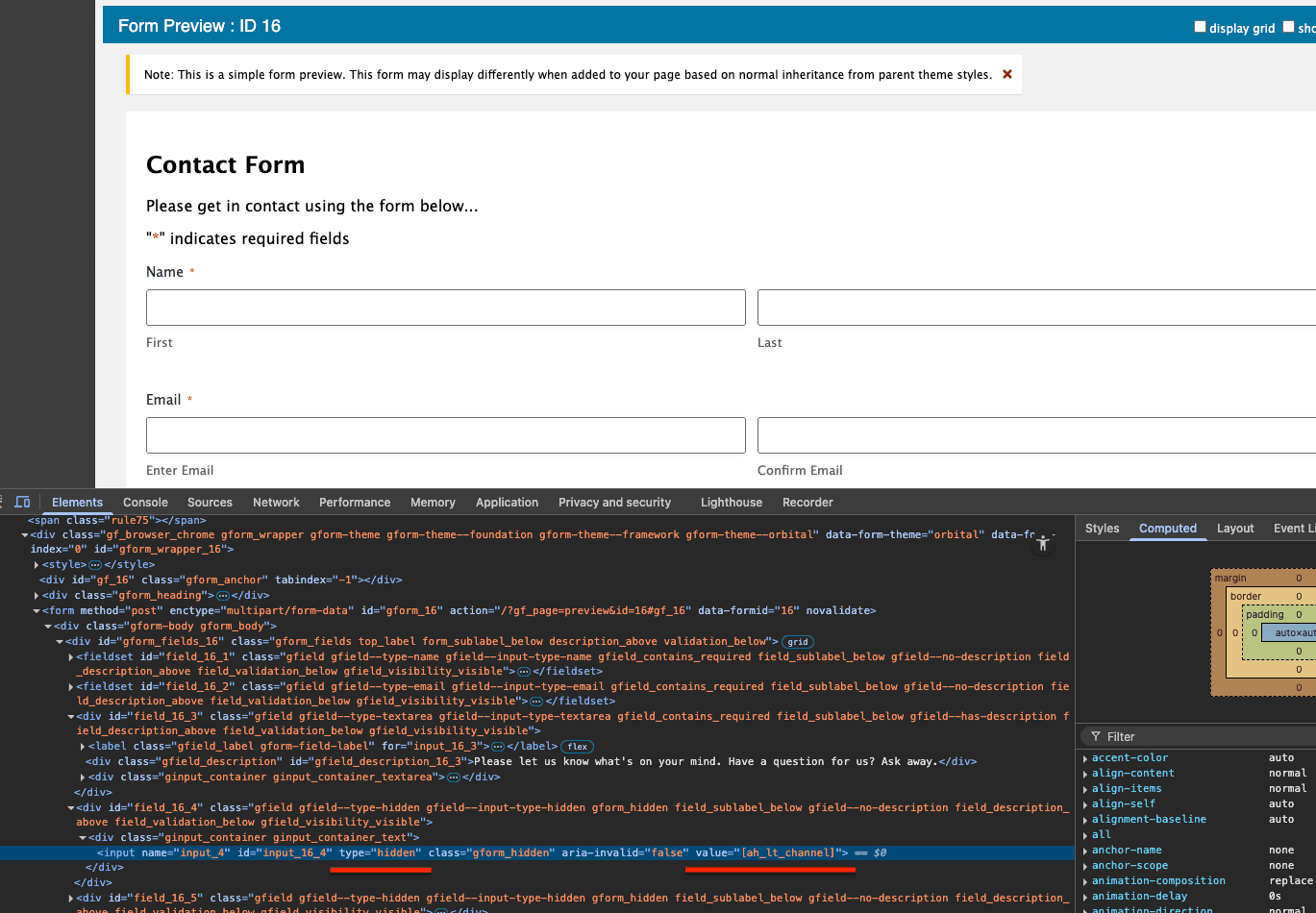
Hidden fields are empty in form entries
- Make sure the AttributionHub script is actually loading — check the Network tab in DevTools for the script request
- Double-check that the Default Value on each hidden field exactly matches a supported field name, including the square brackets (e.g.,
[ah_lt_channel]) - Confirm “Allow field to be populated dynamically” is not checked
- Turn on logging (
enableLogging: truein your settings) and look at the browser Console for population messages
Fields show “[object Object]” or unexpected values
This usually means the Default Value doesn’t match a valid field name. Check the spelling and brackets against the Field Reference.
Form loads after the script runs
This is rare with Gravity Forms since it renders inline, but it can happen if the form loads via AJAX or inside a modal. AttributionHub’s MutationObserver should catch it automatically. If it doesn’t, see the Form Integrations troubleshooting guide for more options.