Jotform
Jotform is a popular form builder with drag-and-drop editing, conditional logic, payment integrations, and hundreds of templates. Most Jotform embeds use a cross-origin iframe hosted on jotform.com, which means your page can’t directly access form fields inside it. AttributionHub works around this by appending attribution data as URL search parameters to the iframe src — Jotform picks those up and pre-fills the matching fields automatically.
If you happen to use Jotform’s “Source Code” embed (which renders a regular <form> element on your page), the standard forms handler takes care of it — no extra setup needed.
The whole process takes about 10 minutes.
Prerequisites
Before you start:
- The AttributionHub tracking script is running on your site (see Installation)
- You have a Jotform account with permission to edit forms
- You can add or edit embed code on your website
Step 1: Add Hidden Fields in Jotform
Open your form in the Jotform form builder. You should see it in your workspace — click Edit Form to jump into the builder.
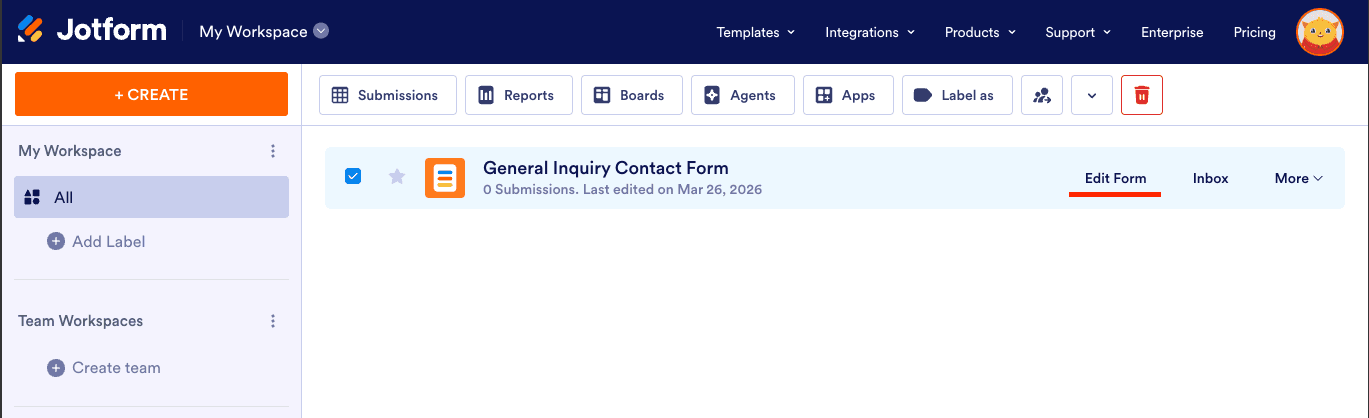
Once you’re in the builder, click the + button on the left to open the Form Elements panel.
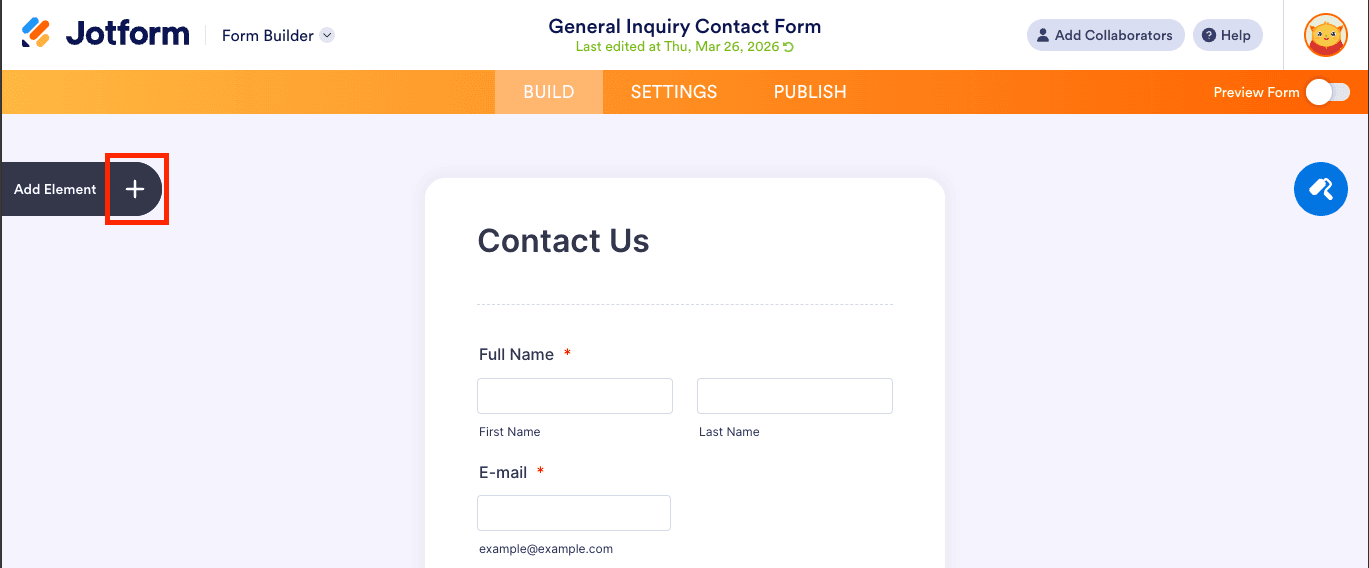
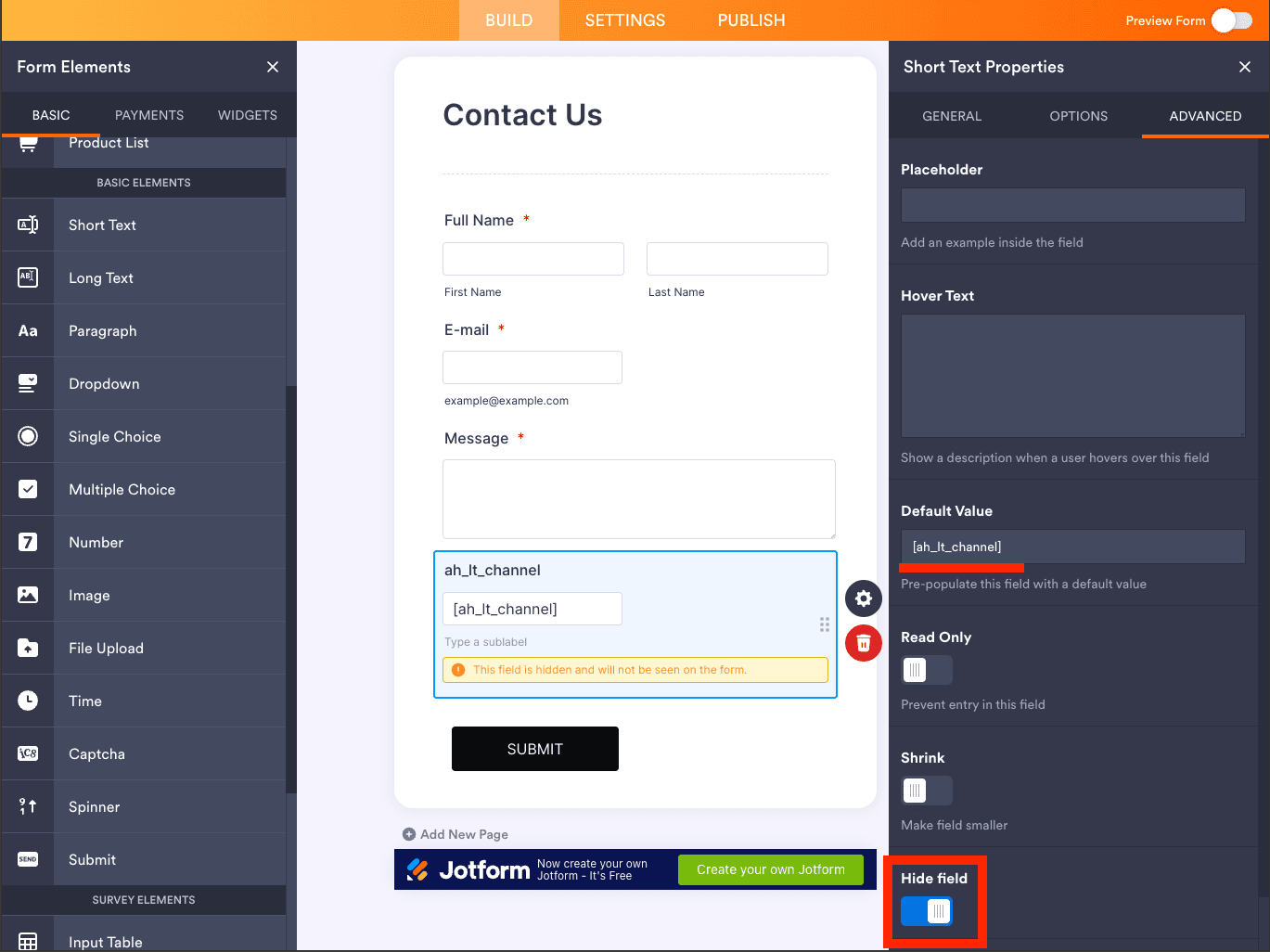
From the Basic elements list, drag a Short Text field onto your form. You’ll use this as a hidden field to hold attribution data.
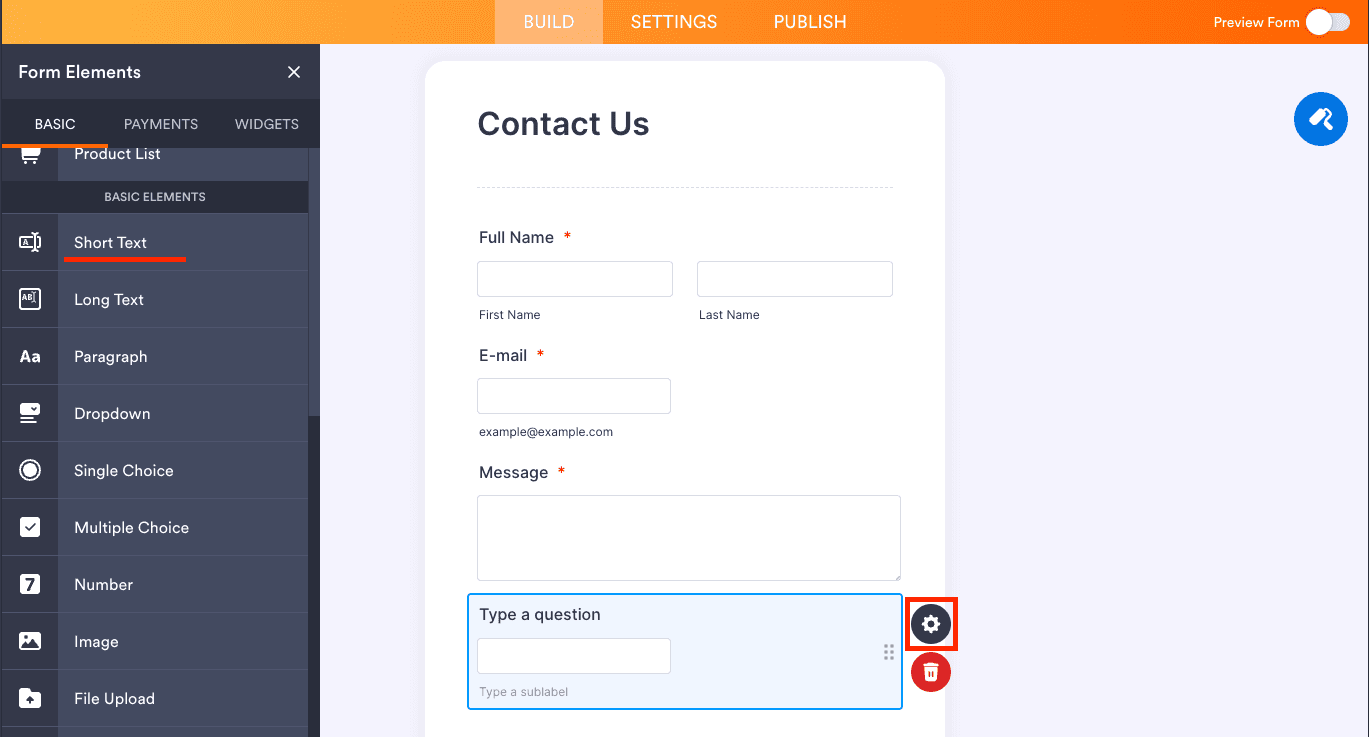
Click the gear icon on the new field to open its properties, then switch to the ADVANCED tab. Set the Field Label to the AttributionHub field name you want to capture — for example, ah_lt_channel.
Still in the ADVANCED tab, scroll down and:
- Set the Default Value to the field name wrapped in square brackets — e.g.,
[ah_lt_channel]. This tells Jotform to pre-fill the field from a URL parameter with that name. - Toggle Hide field to ON. You’ll see a yellow notice confirming the field won’t be visible to visitors.
Repeat this for each attribution field you want to capture. The most common ones:
ah_lt_channelah_lt_sourceah_lt_mediumah_lt_campaignah_lt_landing_urlah_ft_channelah_ft_sourceah_visitor_id
You don’t have to add all of them — pick whichever fields matter for your reporting.
Save the form when you’re done.
Step 2: Embed the Form on Your Page
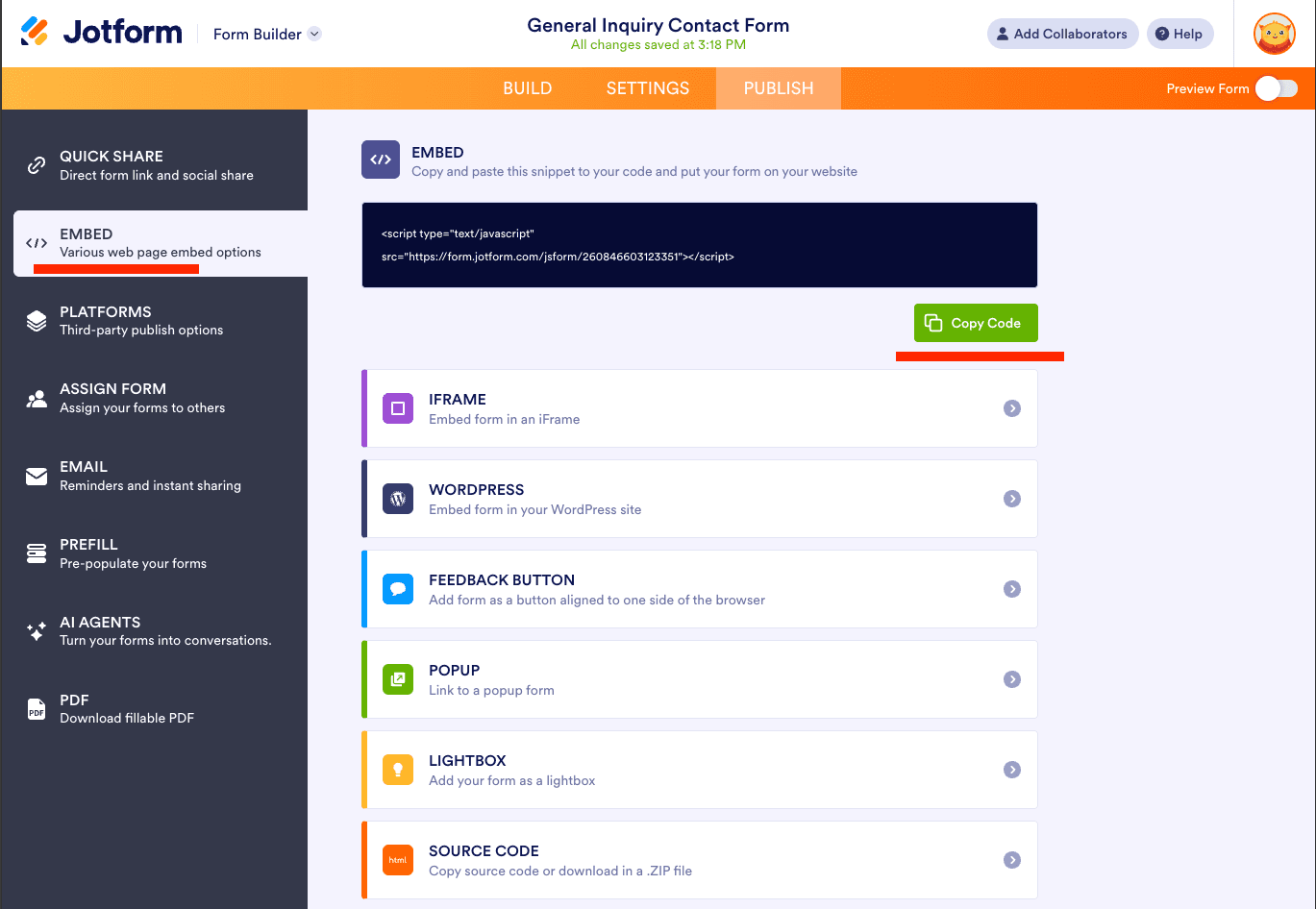
Jotform offers several ways to embed a form — JavaScript snippet, iframe, WordPress plugin, popup, lightbox, source code, and more. You can find all of them under the Publish tab > Embed in the form builder. Here are some of them.
Standard Embed (JavaScript Snippet)
This is the default embed code you see when you open the Embed page — a <script> tag that loads the form via JavaScript. Copy the code and drop it into your site. AttributionHub detects and handles these automatically.
Iframe Embed
Click IFRAME on the Publish page to get the iframe embed code.
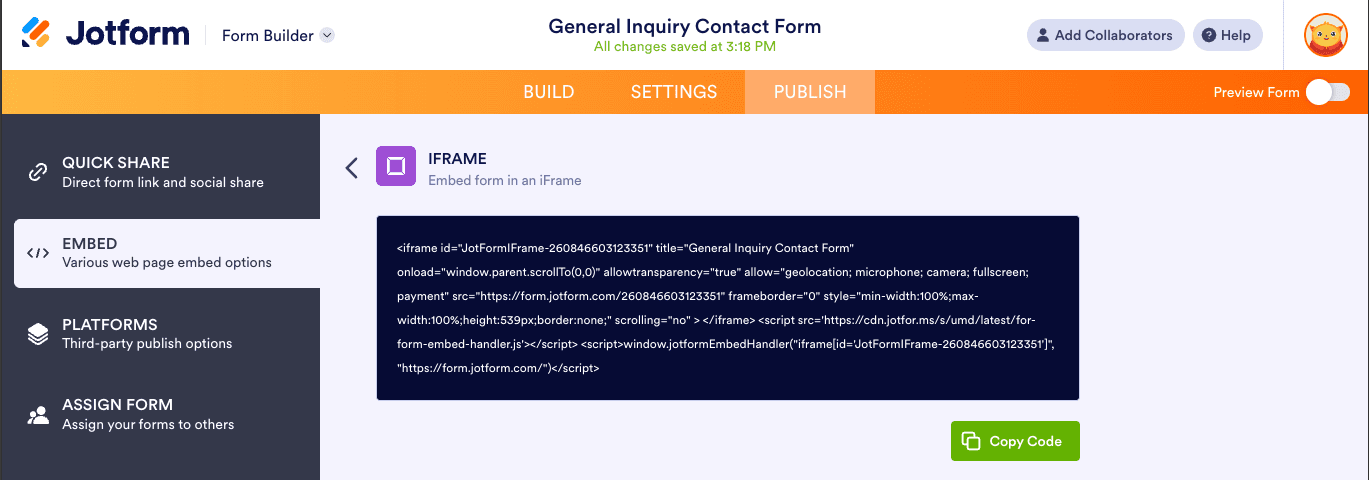
Copy the code and paste it into your site. AttributionHub detects Jotform iframes automatically — no extra attributes needed. It looks for:
iframe[src*="jotform.com"]iframe[src*="jotform.co"]
The embed code will look something like this:
<iframe
  id="JotFormIFrame-XXXXXXXXXXXX"
  title="Your Form Title"
  src="https://form.jotform.com/XXXXXXXXXXXX"
  frameborder="0"
  style="min-width:100%;max-width:100%;height:600px;border:none;"
  scrolling="no"
></iframe>
If your Jotform uses a custom or regional domain that doesn’t match those patterns, add the data-attrhub-jotform attribute to the iframe so AttributionHub can find it:
<iframe
  data-attrhub-jotform
  src="https://form.jotform.eu/XXXXXXXXXXXX"
  ...
></iframe>
Source Code Embed
If you use the “Source Code” option, Jotform renders a standard HTML <form> element directly on your page. The standard forms handler picks this up automatically — just make sure the hidden fields have name attributes matching your field mapping.
Step 3: Test the Integration
Time to make sure everything’s wired up:
- Visit a page on your site that has the Jotform embed
- Open DevTools (F12) and go to the Elements panel
- Find the Jotform iframe and check that its
srcURL now includes attribution parameters:https://form.jotform.com/XXXXXXXXXXXX?ah_lt_channel=Organic+Search&ah_lt_source=Google&ah_lt_medium=organic - Submit a test entry through the form
- In Jotform, go to Submissions and verify that the hidden fields contain the attribution values
For a full testing walkthrough, see Verify It Works.
How It Works
You don’t need to read this section to get things working — the steps above are all you need. But if you’re curious about what happens under the hood:
- AttributionHub scans the page for Jotform iframes (matching
jotform.comorjotform.coin thesrc) - For each iframe it finds, it reads attribution data from localStorage
- It builds URL search parameters from your field mapping (each field name becomes a parameter key)
- It updates the iframe
srcwith the new parameters, which causes the iframe to reload - Jotform reads the URL parameters and pre-fills the matching hidden fields
This all happens automatically on page load. When the visitor submits the form, the pre-filled values are included in the submission.
Recommended Hidden Fields
Here are the most commonly used fields. For the complete list, see Field Reference.
Core Attribution Fields (Latest Touch)
These capture the visitor’s most recent traffic source:
| Field Name | Description | Example Values |
|---|---|---|
ah_lt_channel | Channel group (latest touch) | Paid Search, Organic Social, Direct |
ah_lt_source | Traffic source name | Google, Facebook, Direct |
ah_lt_medium | Traffic medium | paid, organic, social, email |
ah_lt_campaign | Campaign name | spring_sale, Organic Search |
ah_lt_content | Content classification | Paid Search Ad, Social Post |
ah_lt_term | Search keyword (if available) | running shoes |
ah_lt_landing_url | Landing page URL (no query string) | https://yoursite.com/pricing |
Core Attribution Fields (First Touch)
First-touch fields record the very first source that brought a visitor to your site. Once set, they never change:
| Field Name | Description | Example Values |
|---|---|---|
ah_ft_channel | Channel group (first touch) | Paid Search, Organic Social |
ah_ft_source | Traffic source name | Google, Facebook |
ah_ft_medium | Traffic medium | paid, organic, social |
ah_ft_campaign | Campaign name | launch_campaign |
ah_ft_landing_url | Original landing page URL | https://yoursite.com/blog/post |
Global Fields
| Field Name | Description | Example Values |
|---|---|---|
ah_visitor_id | Unique visitor ID, persistent across visits | a1b2c3d4-e5f6-7890-abcd-ef1234567890 |
ah_touch_count | Total number of recorded visits | 5 |
For more fields — latest-non-direct touch (
ah_lnd_*), drill-down fields, raw UTM parameters, ad click IDs — see the full Field Reference.
Custom Field Mapping
If your Jotform hidden fields already use different names (say, you set them up for another tool), you can remap AttributionHub’s output to match:
<script>
  window.attrhub = {
    settings: {
      fieldMapping: {
        "latest.attribution.channelGroup": "channel",
        "latest.attribution.source": "source",
        "latest.attribution.campaign": "campaign",
      },
    },
  };
</script>
The names in fieldMapping need to match the field labels you used in Jotform. See Configuration for the full mapping reference.
Tips
- Downstream integrations — Jotform supports 100+ integrations (Google Sheets, Salesforce, HubSpot, Slack, etc.). Hidden field values are included in all integration payloads, so attribution data flows through to your other tools automatically.
- Reports — Use Jotform’s built-in report builder to create charts based on attribution data. Useful for seeing which channels generate the most submissions at a glance.
- Conditional logic — You can reference the attribution hidden field values in Jotform’s conditional logic to show or hide form sections based on the visitor’s traffic source.
- Multiple forms on one page — AttributionHub detects and populates all Jotform iframes on the page independently.
- Payment forms — Hidden fields work in Jotform payment forms the same way. Useful for tracking which marketing channels drive the most revenue.
- Jotform Tables — When viewing submissions in Jotform Tables, hidden field values appear as columns. You can filter and sort by attribution data.
Troubleshooting
Hidden fields are empty in submissions
- Check the iframe
srcin DevTools to confirm attribution parameters are being appended. - Make sure the hidden field labels in Jotform exactly match the parameter names in the URL — they’re case-sensitive.
- Verify that each hidden field’s Default Value is set to the field name in square brackets (e.g.,
[ah_lt_channel]). - Turn on logging (
enableLogging: truein settings) and check the browser Console for errors.
Iframe not detected
If AttributionHub isn’t finding your iframe, make sure it matches one of the selectors listed in Iframe Embed above. For custom or regional domains, use the data-attrhub-jotform attribute.
Form height issues after URL update
When AttributionHub updates the iframe src, the iframe reloads. If you use Jotform’s auto-height script, it should re-adjust after the reload. If the height doesn’t update, make sure Jotform’s handleIFrameMessage script is loaded on the page.