Typeform
Typeform is a popular form builder with a conversational, one-question-at-a-time approach. AttributionHub integrates with Typeform embeds by setting the data-tf-hidden attribute on the container element, which passes attribution values as hidden fields into the form. If the embed uses an iframe, values are also added as hash parameters on the iframe URL.
The whole setup takes around 10 minutes: add URL parameters to your Typeform, configure the embed, and drop data-attrhub-tf onto your embed element.
Prerequisites
Before you start:
- The AttributionHub tracking script is running on your site (see Installation)
- You have a Typeform account with permission to edit forms
Step 1: Open Your Form in Typeform
Log into Typeform and open the form you want to add attribution tracking to. If you’re starting fresh, create a new form first — any template works.
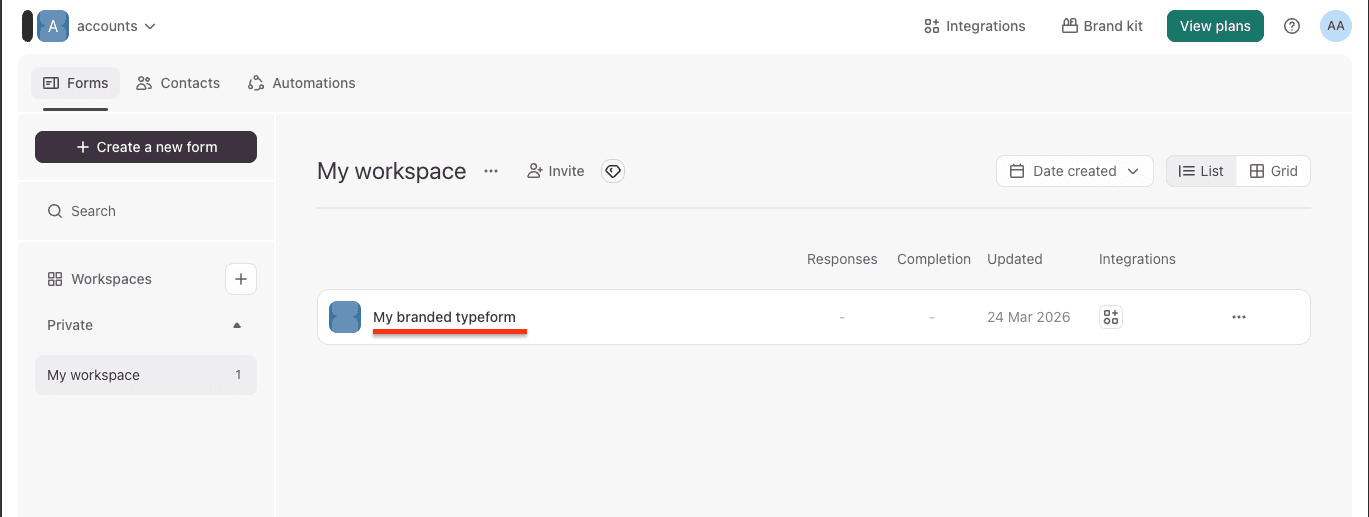
Click on your form to open the editor. You’ll land on the Content tab where your questions live.
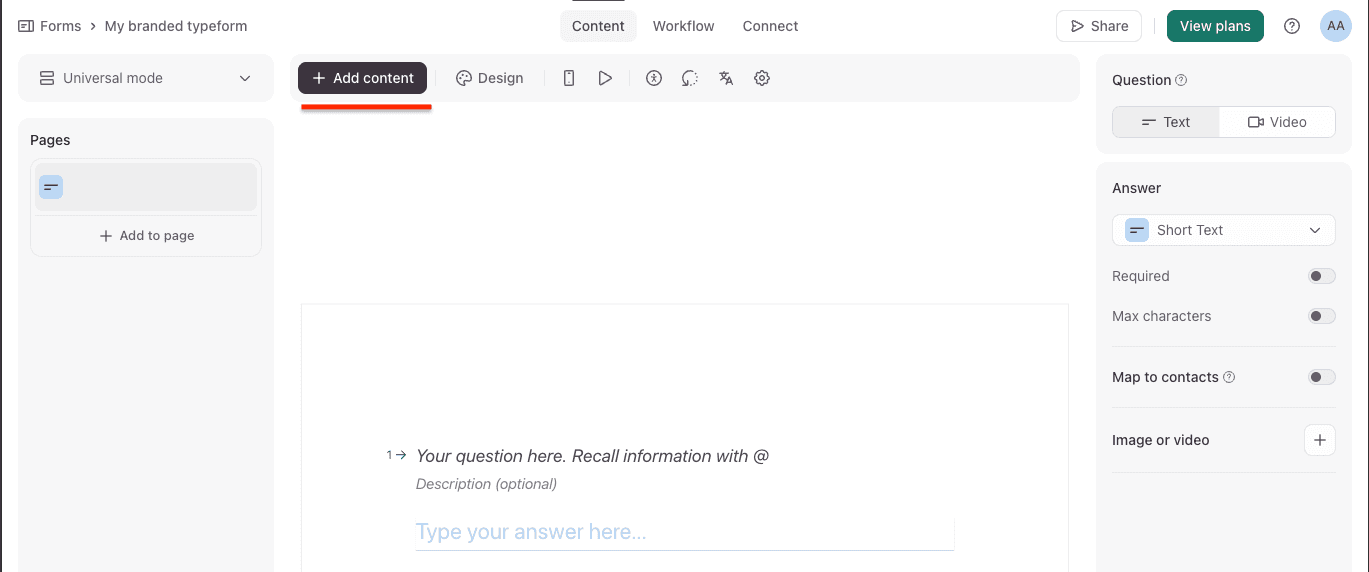
Step 2: Add URL Parameters
Typeform uses URL parameters (sometimes called hidden fields) to pass data into a form without the respondent seeing it. You need to create one parameter for each attribution field you want to capture.
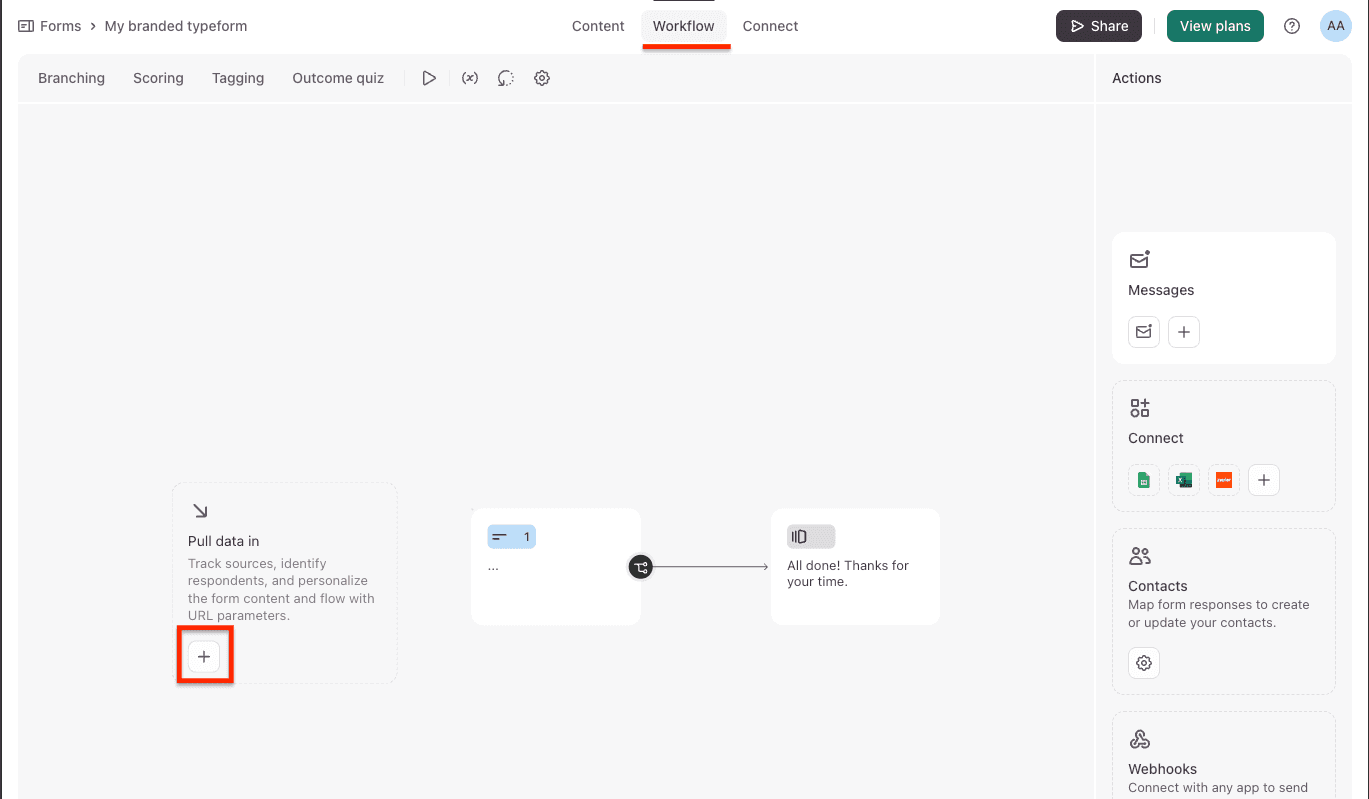
- Switch to the Workflow tab at the top of the editor
- In the flow diagram, find the Pull data in block on the left side
- Click the + button under it to add a new data source
- In the Pull data in through URL parameters dialog that opens, click Add new parameter
- Type the field name exactly as used in your AttributionHub field mapping — for example,
ah_lt_channel - Repeat for each field you want to track. The most common ones:
ah_lt_channelah_lt_sourceah_lt_mediumah_lt_campaignah_lt_landing_urlah_ft_channelah_ft_sourceah_visitor_id
- Click Save
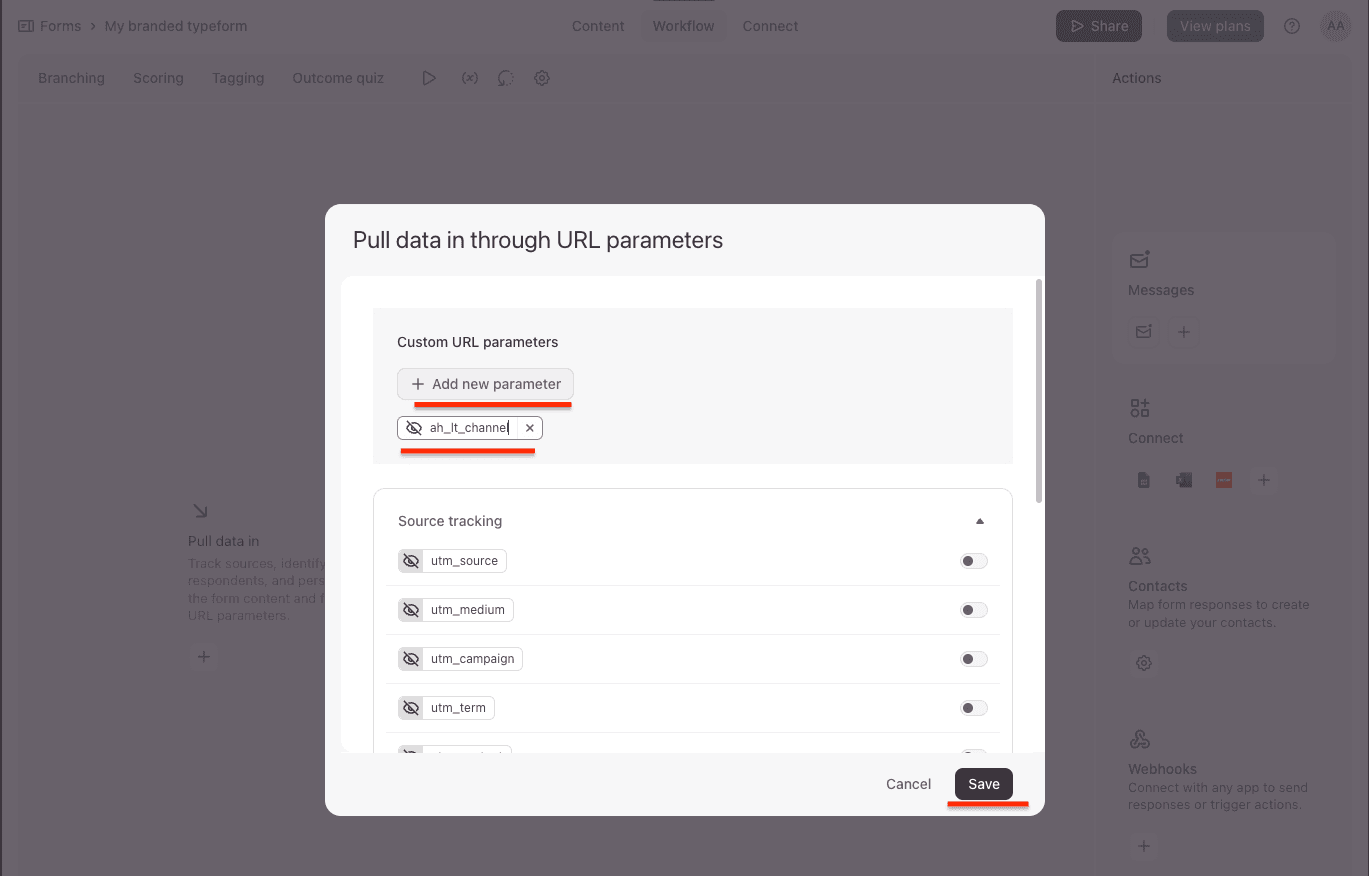
The parameter names must match your AttributionHub field mapping exactly (by default, names like ah_lt_channel, etc.). Pick whichever fields matter for your reporting — you don’t have to add all of them.
You’ll notice Typeform also has built-in Source tracking parameters (
utm_source,utm_medium, etc.) in the same dialog. Those are separate from AttributionHub fields and you can leave them off unless you specifically want the raw UTM values too.
Step 3: Configure the Embed
Once your parameters are saved, you should see them listed under “Pull data in” in the workflow view. Now it’s time to set up the embed.
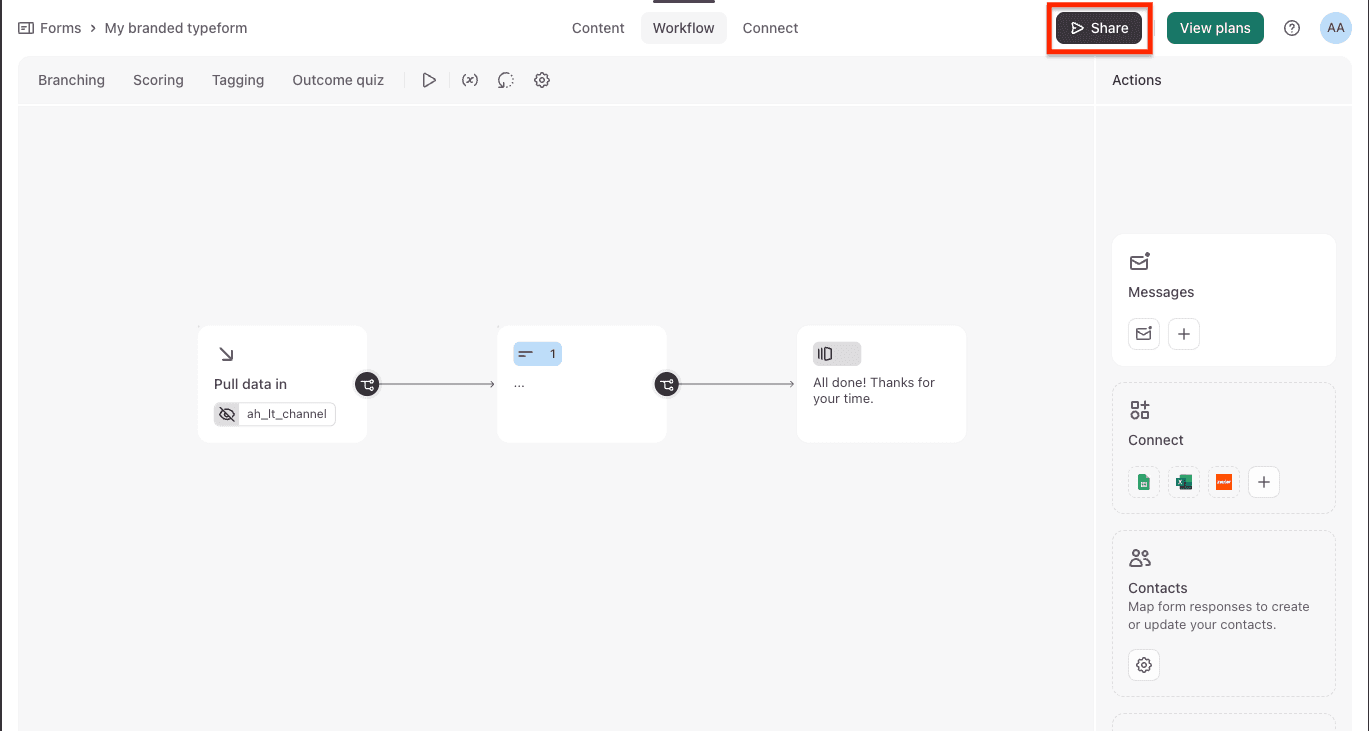
- Click the Share button in the top right corner
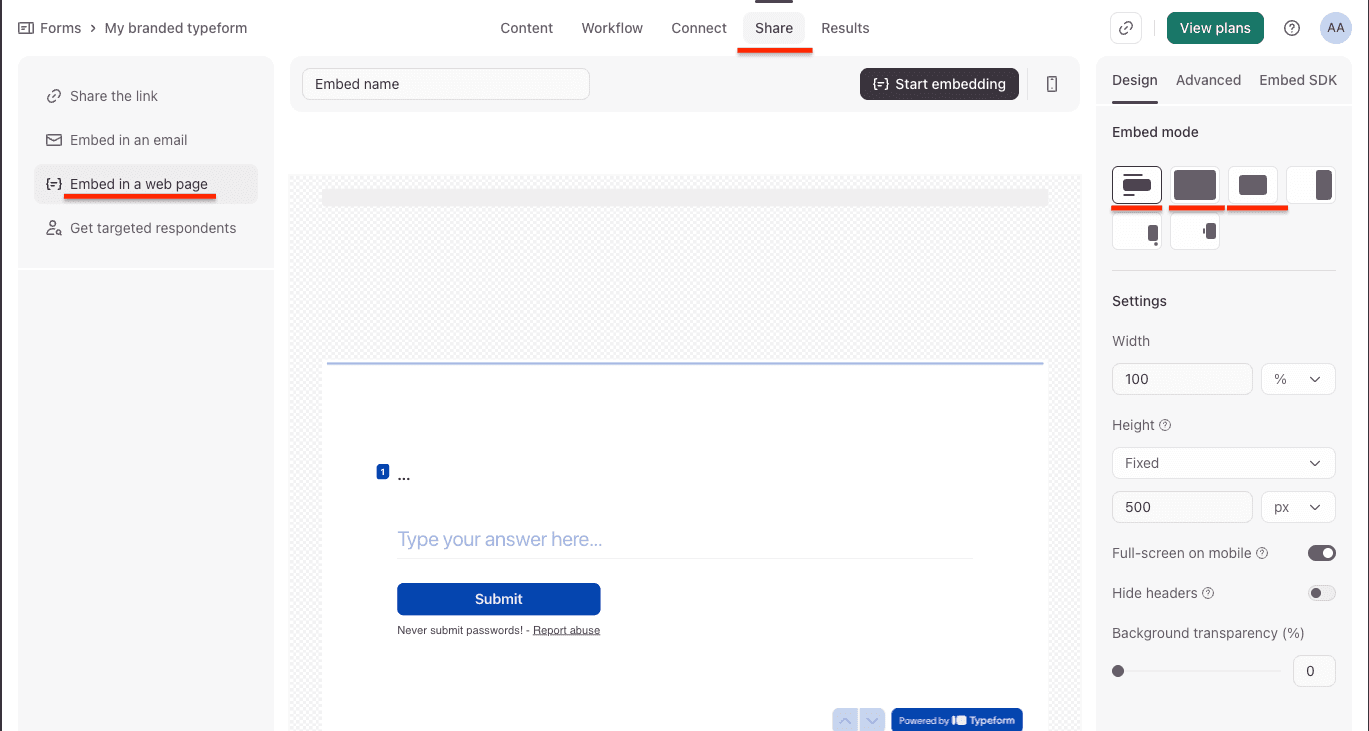
- Select Embed in a web page from the left sidebar
- Pick your preferred embed mode (standard, popup, slider, etc.) and set the dimensions
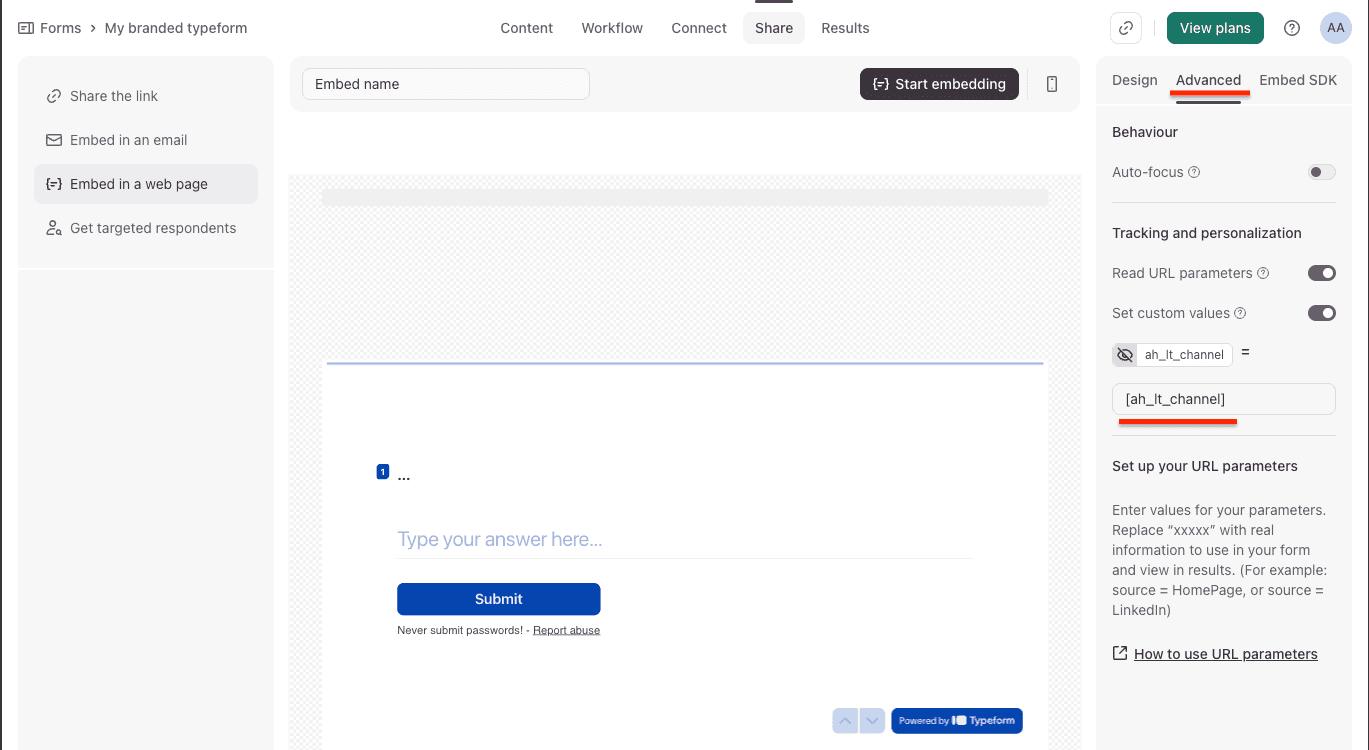
- Switch to the Advanced tab on the right side
- Under Tracking and personalization, make sure both Read URL parameters and Set custom values are toggled on
- You should see your URL parameters listed here (e.g.,
ah_lt_channel). Leave the default values as-is — AttributionHub handles the actual values at runtime
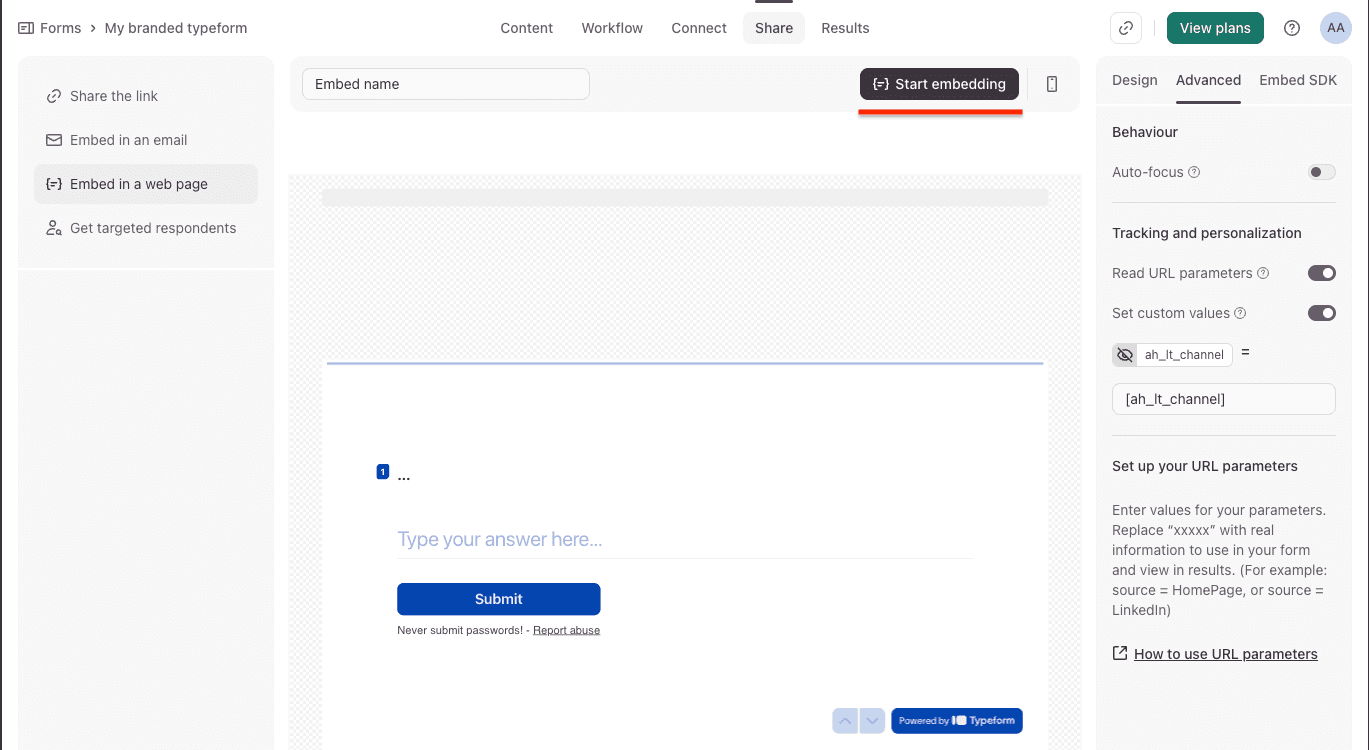
- Click the Start embedding button to get your embed code
- Copy the embed code from the dialog
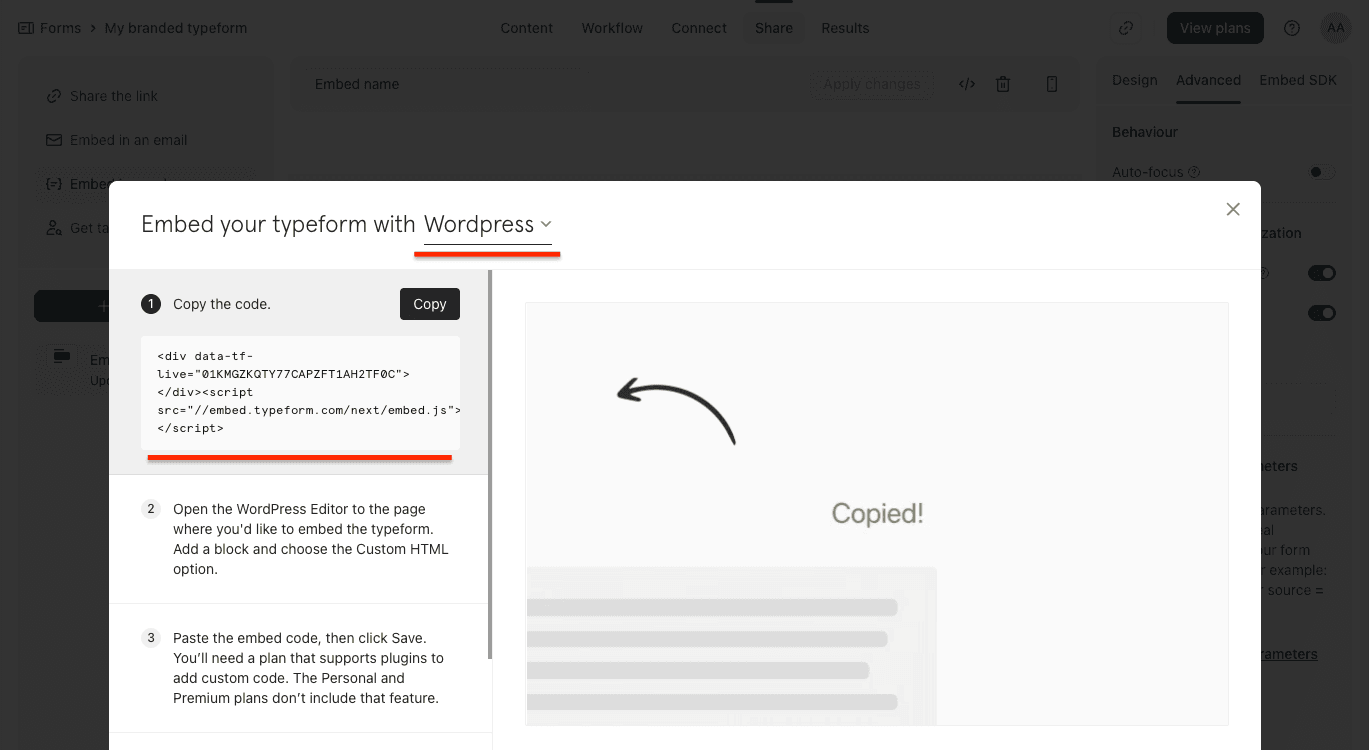
Step 4: Add the data-attrhub-tf Attribute to Your Embed
One last thing before you paste the embed code into your site: add data-attrhub-tf to the Typeform container element. This tells AttributionHub to find the form and populate its hidden fields.
Standard embed:
<div
  data-tf-widget="YOUR_FORM_ID"
  data-tf-medium="snippet"
  data-attrhub-tf
  style="width:100%;height:500px;"
></div>
<script src="//embed.typeform.com/next/embed.js"></script>
Popup embed:
<button data-tf-popup="YOUR_FORM_ID" data-tf-size="70" data-attrhub-tf>
  Open Form
</button>
<script src="//embed.typeform.com/next/embed.js"></script>
Slider embed:
<button data-tf-slider="YOUR_FORM_ID" data-attrhub-tf>Open Form</button>
<script src="//embed.typeform.com/next/embed.js"></script>
The only change from the default embed code is adding data-attrhub-tf to the element. Everything else stays the same.
Step 5: Test the Integration
Time to make sure everything’s wired up:
- Visit a page on your site that has the Typeform embed
- Open your browser’s DevTools (F12)
- In the Elements panel, find the element with
data-attrhub-tfand check that it now has adata-tf-hiddenattribute with your values:data-tf-hidden="ah_lt_channel=Organic%20Search,ah_lt_source=Google,ah_lt_medium=organic,..." - If the embed uses an iframe, check that the iframe
srcincludes attribution values in the URL hash fragment (after#) - Submit a test response through the form
- In Typeform, go to Results > Responses and verify the hidden fields contain attribution data
For a full walkthrough, see Verify It Works.
How It Works
You don’t need to read this section to get things working — the steps above are all you need. But if you’re curious about what happens behind the scenes, here’s the rundown.
data-tf-hidden Attribute
The Typeform embed SDK reads the data-tf-hidden attribute to populate hidden fields. AttributionHub builds a comma-separated list of fieldName=value pairs from your field mapping and sets this attribute on the container:
data-tf-hidden="ah_lt_channel=Paid%20Search,ah_lt_source=Google,ah_lt_medium=paid"When the form loads, Typeform reads this attribute and passes the values as hidden field answers.
Iframe Hash Parameters
If the embed uses an iframe internally, AttributionHub also adds attribution values to the iframe URL’s hash fragment (#). This is a fallback that ensures values get through even if the SDK doesn’t read data-tf-hidden in time:
https://form.typeform.com/to/FORM_ID#ah_lt_channel=Paid%20Search&ah_lt_source=GoogleWidget Reload
If the Typeform JavaScript SDK (window.tf) is available and has a reload() method, AttributionHub calls it after populating the hidden fields. This forces the widget to re-read the data-tf-hidden attribute and apply the updated values immediately.
Recommended Hidden Fields
Here are the most commonly used fields. For the complete list, see Field Reference.
Core Attribution Fields (Latest Touch)
These capture the visitor’s most recent traffic source:
| Hidden Field Name | Description | Example Values |
|---|---|---|
ah_lt_channel | Channel group (latest touch) | Paid Search, Organic Social, Direct |
ah_lt_source | Traffic source name | Google, Facebook, Direct |
ah_lt_medium | Traffic medium | paid, organic, social, email |
ah_lt_campaign | Campaign name | spring_sale, Organic Search |
ah_lt_content | Content classification | Paid Search Ad, Social Post |
ah_lt_term | Search keyword (if available) | running shoes |
ah_lt_landing_url | Landing page URL (no query string) | https://yoursite.com/pricing |
Core Attribution Fields (First Touch)
First-touch fields record the very first source that brought a visitor to your site. Once set, they never change:
| Hidden Field Name | Description | Example Values |
|---|---|---|
ah_ft_channel | Channel group (first touch) | Paid Search, Organic Social |
ah_ft_source | Traffic source name | Google, Facebook |
ah_ft_medium | Traffic medium | paid, organic, social |
ah_ft_campaign | Campaign name | launch_campaign |
ah_ft_landing_url | Original landing page URL | https://yoursite.com/blog/post |
Global Fields
| Hidden Field Name | Description | Example Values |
|---|---|---|
ah_visitor_id | Unique visitor ID, persistent across visits | a1b2c3d4-e5f6-7890-abcd-ef1234567890 |
ah_touch_count | Total number of recorded visits | 5 |
For more fields — latest-non-direct touch (
ah_lnd_*), drill-down fields, raw UTM parameters, ad click IDs — see the full Field Reference.
Custom Field Mapping
If your Typeform parameters use different names (say, you already have fields set up for another tool), you can remap AttributionHub’s output to match:
<script>
  window.attrhub = {
    settings: {
      fieldMapping: {
        "latest.attribution.channelGroup": "marketing_channel",
        "latest.attribution.source": "traffic_source",
        "latest.attribution.campaign": "campaign_name",
      },
    },
  };
</script>
The names in fieldMapping need to match the URL parameter names you created in Typeform. See Configuration for the full mapping reference.
Tips
- Results export — When you export responses from Typeform (CSV or Google Sheets), hidden field values come through as columns. Handy for analyzing which channels drive the most submissions.
- Webhooks — If you use Typeform webhooks to push responses to a CRM, hidden field values are included in the payload automatically.
- Zapier / Make — When connecting Typeform to other tools, map the hidden fields to the right destination fields in your CRM, spreadsheet, or database.
- Multiple forms on one page — Add
data-attrhub-tfto each Typeform container. AttributionHub populates them independently. - Combine with Typeform analytics — Use attribution data alongside Typeform’s built-in completion metrics to understand which traffic sources produce the most engaged respondents.
Troubleshooting
Hidden fields are empty in Typeform responses
- Check that the embed element has the
data-attrhub-tfattribute. - Inspect the
data-tf-hiddenattribute in DevTools — it should contain your field names and values. - Make sure the URL parameter names in Typeform exactly match the names in
data-tf-hidden(they’re case-sensitive). - In the Typeform Share > Advanced tab, confirm that Read URL parameters and Set custom values are both toggled on.
- Turn on logging (
enableLogging: truein settings) and check the browser Console for errors.
data-tf-hidden is set but values are not appearing in responses
This can happen if the Typeform embed loads and initializes before AttributionHub sets the attribute. The widget reload (window.tf.reload()) should handle this, but if your version of the Typeform SDK doesn’t support reload, make sure the AttributionHub script loads before the Typeform embed script in your page.
Popup or slider form not detected
The data-attrhub-tf attribute needs to be on the trigger element (the button or link), not on a parent container. AttributionHub looks for [data-attrhub-tf] elements specifically.