HubSpot
AttributionHub works with all types of HubSpot form embeds — whether your forms render as native HTML, inside iframes, or through HubSpot’s newer V4 Forms SDK. You don’t need to figure out which type you have; the tracking script detects it and handles everything. No extra bridge scripts or custom code on your pages.
The setup takes about 10 minutes: create a few custom properties in HubSpot, add them as hidden fields to your form, and you’re done.
Prerequisites
Before you start:
- The AttributionHub tracking script is installed on your site (see Installation)
- You have a HubSpot account with permission to create contact properties and edit forms
Step 1: Create Custom Properties in HubSpot
Attribution data needs somewhere to live on each contact record. You’ll create a custom property for each field you want to track.
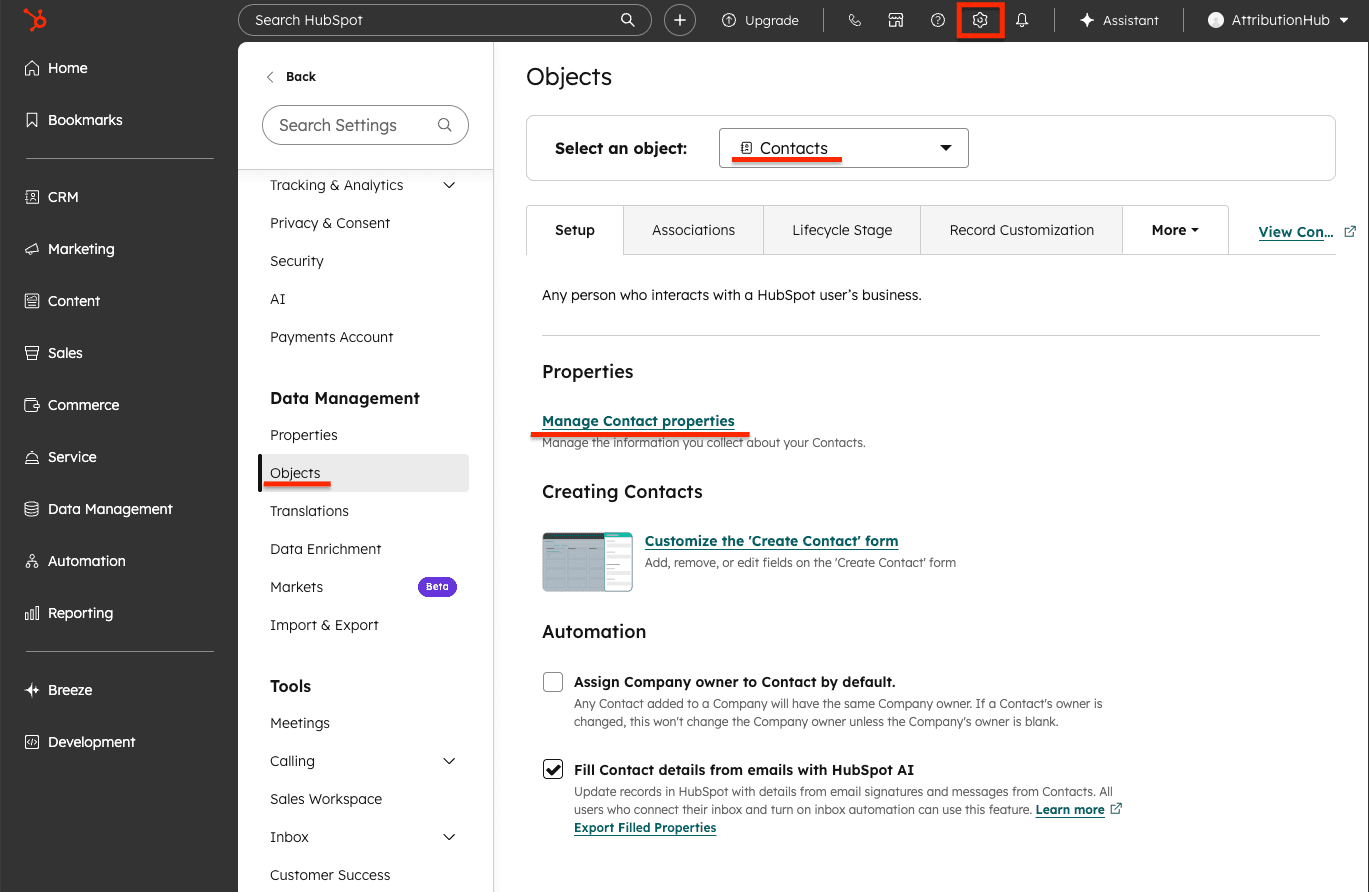
- In HubSpot, go to Settings (gear icon in the top navigation)
- Navigate to Data Management > Objects > Contacts > click to Manage contact properties
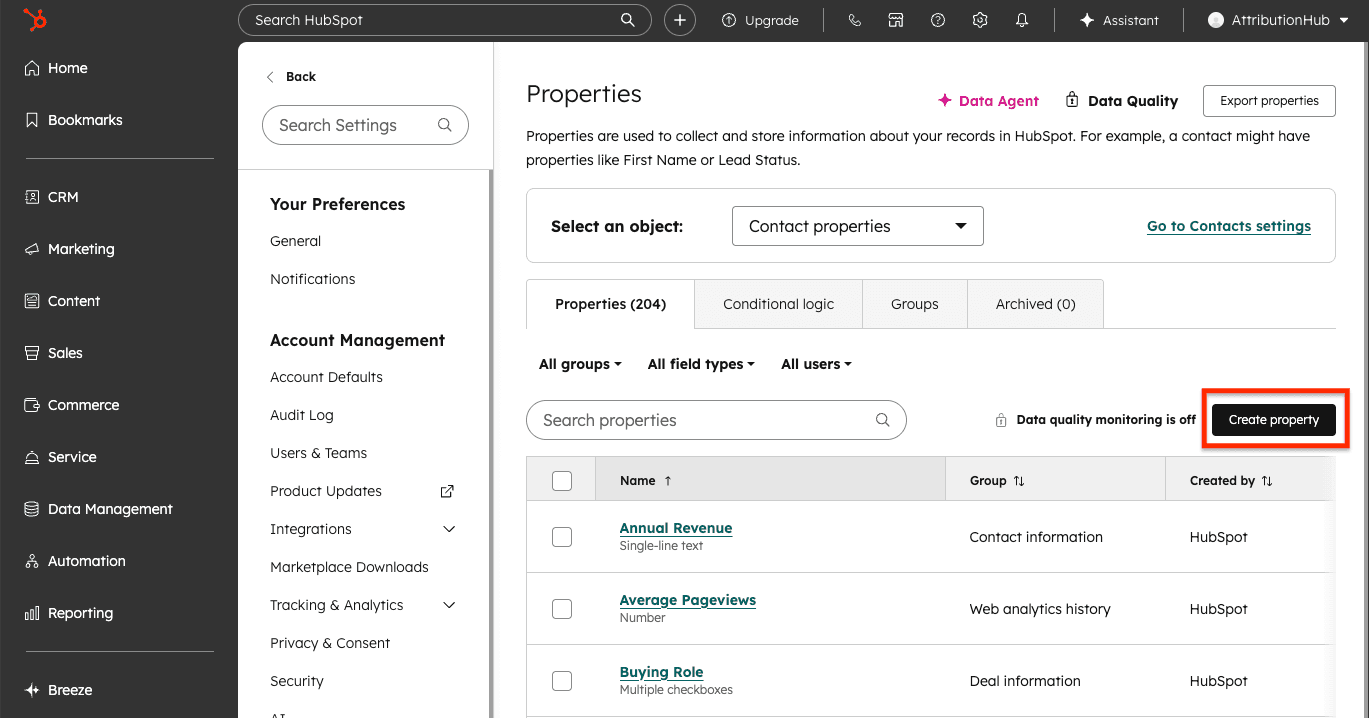
- Click Create property
-
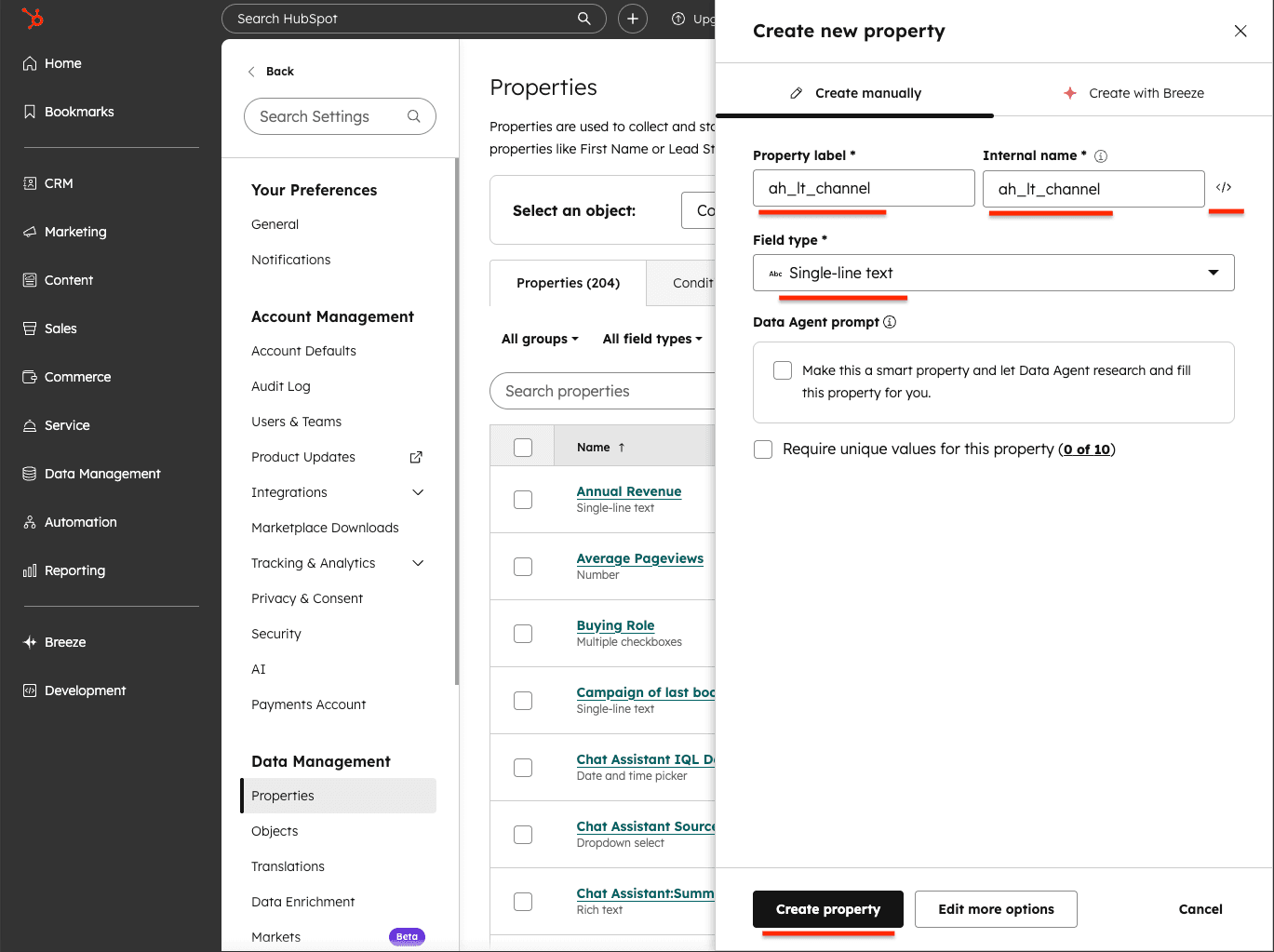
For each attribution field you want to track:
- Property label: something descriptive like “Attribution Channel - Latest” (or simply
ah_lt_channel) - Internal name: must match the AttributionHub field name exactly (e.g.,
ah_lt_channel) - Field type: Single-line text
Hit Create property and repeat for each field
We recommend creating properties for at least the core fields listed under Recommended Hidden Fields below.
- Property label: something descriptive like “Attribution Channel - Latest” (or simply
Step 2: Add Hidden Fields to Your Form
Now add those properties to your form so AttributionHub can write values into them.
- In HubSpot, go to Marketing > Forms
- Open the form you want to add attribution tracking to, or create a new form
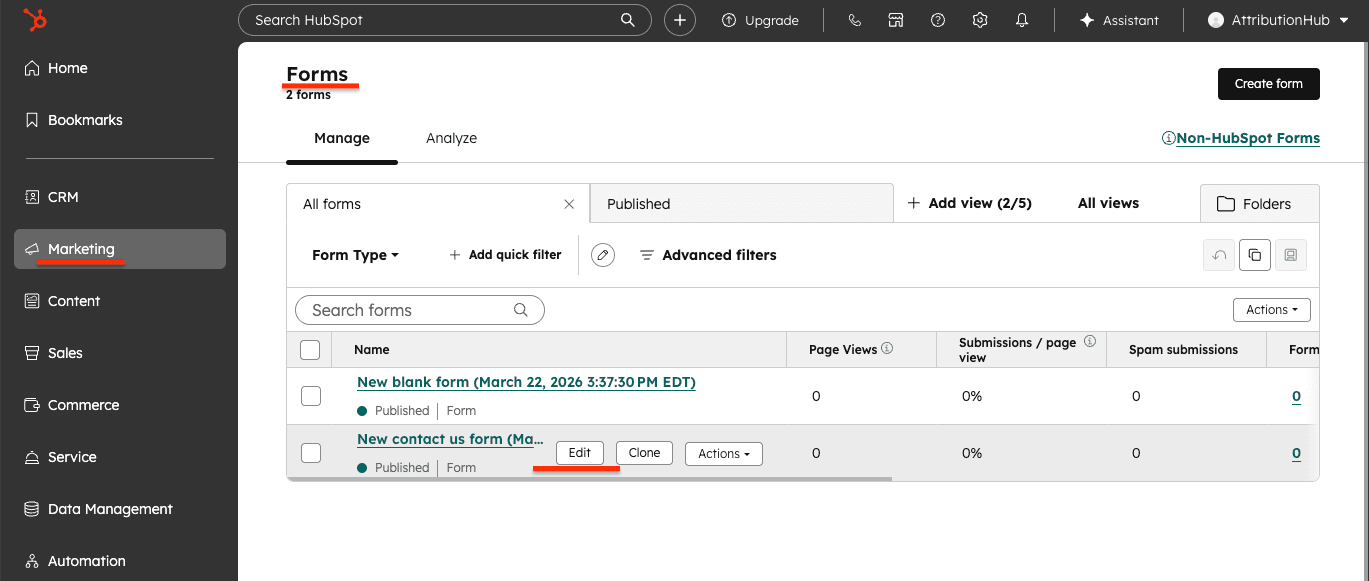
- In the form editor, drag each of your new attribution properties into the form as fields
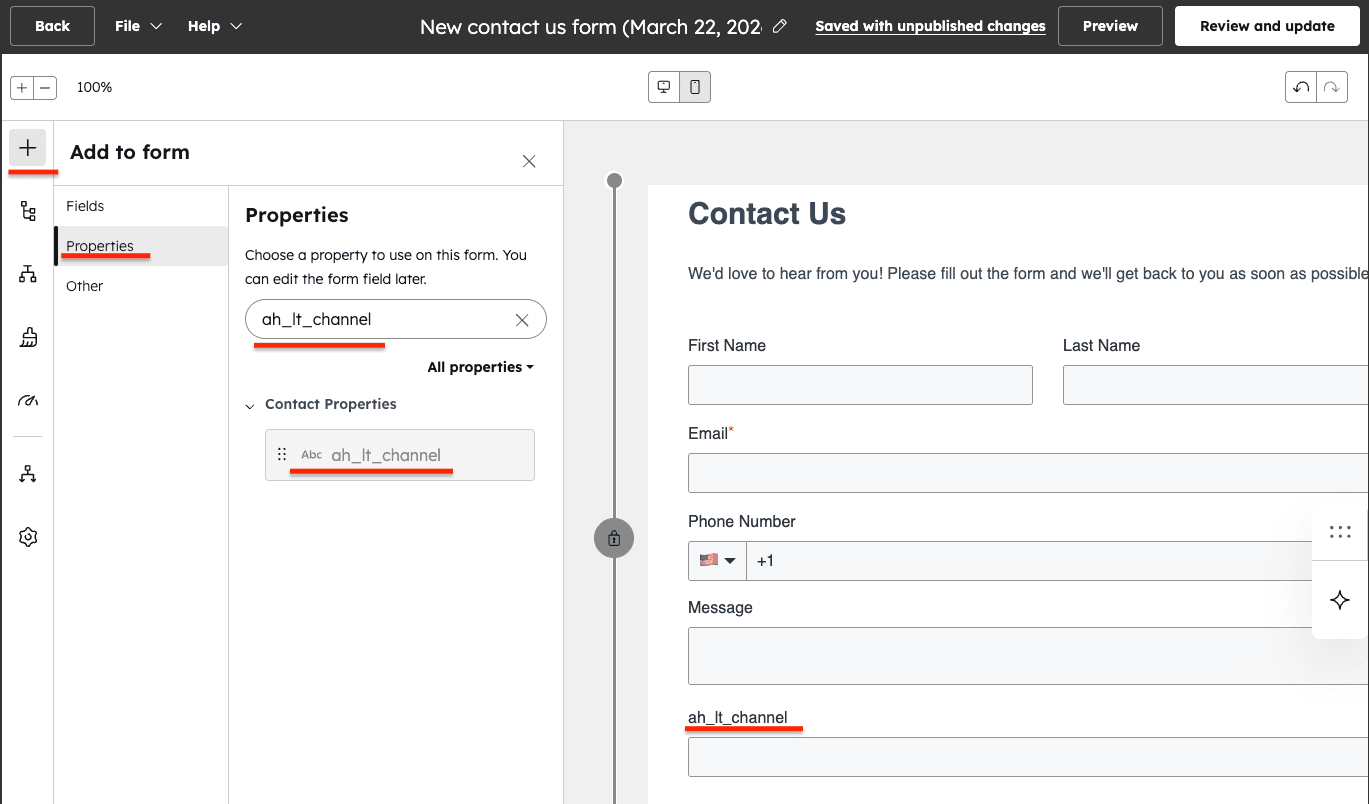
- For each field you added:
- Click on it in the form editor
- Toggle Make this field hidden to on
- Leave Default value empty — AttributionHub fills it in automatically
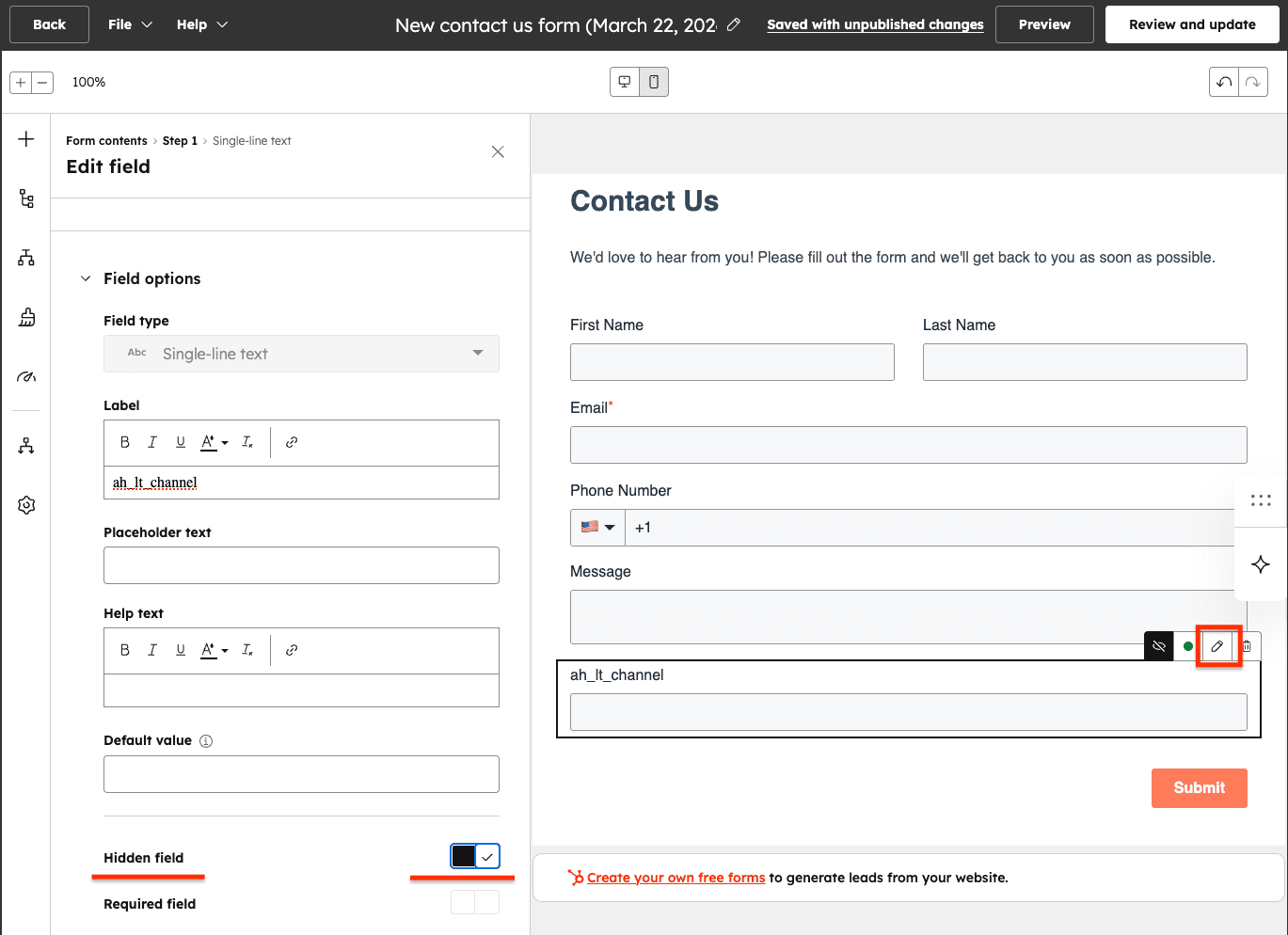
Step 3: Embed the Form on Your Page
Use whatever HubSpot embed method your site already uses. You don’t need to change anything — AttributionHub picks up the form automatically.
Script embed (iframe mode):
<script
  charset="utf-8"
  type="text/javascript"
  src="//js.hsforms.net/forms/embed/v2.js"
></script>
<script>
  hbspt.forms.create({
    region: "na1",
    portalId: "YOUR_PORTAL_ID",
    formId: "YOUR_FORM_ID",
  });
</script>
HTML embed (native mode): If your CMS or page builder renders the HubSpot form directly as HTML, it just works — the standard forms handler picks it up like any other HTML form.
You don’t need to touch your embed code. AttributionHub finds HubSpot forms by looking for:
iframe[src*="forms.hubspot.com"].hs-form-iframe.hbspt-form[data-attrhub-hubspot](explicit opt-in for custom domains or non-standard embeds)
If your HubSpot portal uses a custom domain and the iframe URL doesn’t contain forms.hubspot.com, add data-attrhub-hubspot to the iframe element so AttributionHub can find it.
Step 4: Test the Integration
Time to make sure everything’s working:
- Visit a page on your site that contains the HubSpot form
- Open your browser’s DevTools (F12)
- For iframe embeds: inspect the iframe element and check that its
srcURL now includes attribution parameters (e.g.,?ah_lt_channel=Organic+Search&ah_lt_source=Google) - For native forms: inspect the hidden
<input>elements inside the form and verify they have attribution values - Submit a test form entry
- In HubSpot, go to CRM > Contacts and find your test submission — the attribution properties should be filled in
For a full walkthrough, see Verify It Works.
How It Works
You don’t need to read this section to get things working — the steps above are all you need. But if you’re curious about what’s happening under the hood, here’s how each form type is handled.
Native Forms (.hbspt-form)
When HubSpot renders a form as regular HTML in the page DOM, AttributionHub treats it like any other HTML form. It finds hidden fields whose name attributes match your field mapping and fills in the values.
Iframe Embeds
Iframe-embedded forms live inside a cross-origin frame, so there’s no direct DOM access. Instead, the HubSpot handler:
- Finds HubSpot iframes on the page
- Reads attribution data from storage
- Appends the values as URL parameters on the iframe
src - HubSpot reads those parameters and fills the hidden fields inside the iframe
- Conversion tracking parameters (
conversion-timestamp,conversion-url,conversion-event-name) are added too
All automatic — you just need the right property internal names in HubSpot.
V4 Forms SDK
HubSpot’s newer form editor uses the V4 Forms SDK, which can render forms differently from the classic editor. These forms may not have standard <input> elements in the DOM, so AttributionHub talks to the V4 API directly:
- Looks for the
HubSpotFormsV4SDK on the page - Gets all rendered form instances via
getForms() - Sets each attribution field using the SDK’s
setFieldValue()method - Listens for late-loading forms via the
hs-form-event:on-readyevent
If your page has a mix of legacy and V4 forms, each one is handled with the right approach.
Per-Element Field Name Overrides (Iframe)
If a specific iframe embed needs different parameter names than your global fieldMapping, you can override individual fields using data-attrhub-{fieldName} attributes on the iframe element:
<iframe
  src="https://forms.hubspot.com/..."
  data-attrhub-ah_lt_channel="hs_channel"
  data-attrhub-ah_lt_source="hs_source"
></iframe>
In this example, hs_channel and hs_source will be used as parameter names instead of the defaults. Any field without an override keeps its name from fieldMapping.
Recommended Hidden Fields
Here are the most commonly used fields. For the full list, see Field Reference.
Core Attribution Fields (Latest Touch)
These fields capture details about the visitor’s most recent traffic source:
| Property Internal Name | Description | Example Values |
|---|---|---|
ah_lt_channel | Channel group (latest touch) | Paid Search, Organic Social, Direct |
ah_lt_source | Traffic source name | Google, Facebook, Direct |
ah_lt_medium | Traffic medium | paid, organic, social, email |
ah_lt_campaign | Campaign name | spring_sale, Organic Search |
ah_lt_content | Content classification | Paid Search Ad, Social Post |
ah_lt_term | Search keyword (if available) | running shoes |
ah_lt_landing_url | Landing page URL (no query string) | https://yoursite.com/pricing |
Core Attribution Fields (First Touch)
First-touch fields capture the very first source that brought a visitor to your site. Once set, these values never change:
| Property Internal Name | Description | Example Values |
|---|---|---|
ah_ft_channel | Channel group (first touch) | Paid Search, Organic Social |
ah_ft_source | Traffic source name | Google, Facebook |
ah_ft_medium | Traffic medium | paid, organic, social |
ah_ft_campaign | Campaign name | launch_campaign |
ah_ft_landing_url | Original landing page URL | https://yoursite.com/blog/post |
Global Fields
| Property Internal Name | Description | Example Values |
|---|---|---|
ah_visitor_id | Unique visitor ID, persistent across visits | a1b2c3d4-e5f6-7890-abcd-ef1234567890 |
ah_touch_count | Total number of recorded visits | 5 |
For additional fields including latest-non-direct touch (
ah_lnd_*), drill-down fields, raw UTM parameters, and ad click IDs, see the full Field Reference.
Custom Field Mapping
If your HubSpot properties don’t use the default ah_lt_* / ah_ft_* names, you can remap them:
<script>
  window.attrhub = {
    settings: {
      fieldMapping: {
        "latest.attribution.channelGroup": "attribution_channel",
        "latest.attribution.source": "attribution_source",
        "latest.attribution.campaign": "attribution_campaign",
      },
    },
  };
</script>
With this config, AttributionHub writes to attribution_channel, attribution_source, and attribution_campaign instead. See Configuration for all available mapping paths.
Tips
- HubSpot workflows — Use attribution properties to route leads by source. For example, send Paid Search leads to sales and Organic Search leads to a nurture sequence.
- HubSpot reports — Build custom reports on the attribution properties to see which channels bring in the most (and best) leads.
- Multiple forms on one page — All HubSpot forms on the page get populated, regardless of embed type.
- HubSpot landing pages — Add the AttributionHub script to the page’s custom HTML section. The form on that page gets populated automatically.
- Existing contacts — When a returning contact submits a form, HubSpot updates their properties. First-touch values stay as they were; latest-touch values reflect the new submission.
Troubleshooting
Properties are empty after form submission
- Double-check that the property internal names match the AttributionHub field names exactly. They’re case-sensitive.
- Make sure the properties are added as hidden fields in the form editor — just creating the property isn’t enough.
- For iframe embeds, inspect the iframe
srcin DevTools and confirm attribution parameters are being added. - Turn on logging (
enableLogging: truein settings) and check the browser Console for population messages.
Form loads slowly or attribution is missing
HubSpot’s embed script can take a moment to load. AttributionHub retries after ~500 ms and uses a MutationObserver to catch dynamically added forms, so most timing issues resolve on their own. If the form consistently loads late, try moving the HubSpot embed script to the <head>.
Iframe not detected
The iframe src needs to contain forms.hubspot.com or hsforms.com. If your portal uses a custom domain, add data-attrhub-hubspot as an attribute on the iframe element.
V4 Forms SDK not working
AttributionHub fully supports HubSpot’s V4 Forms SDK. If V4 fields aren’t being populated:
- Make sure the HubSpot embed script loads before the AttributionHub script. Putting the HubSpot embed in the
<head>is the simplest way. - For forms that appear after page load, AttributionHub listens for the
hs-form-event:on-readyevent. If it’s not firing, check that your embed code uses the standardhbspt.forms.create()call. - Turn on logging (
enableLogging: true) and look for V4-related messages in the Console.